
Settings
Configure your account, preferences, connections, and document defaults.
FAQ ↓The Settings page is where you manage your account details, interface preferences, external connections, and document defaults.
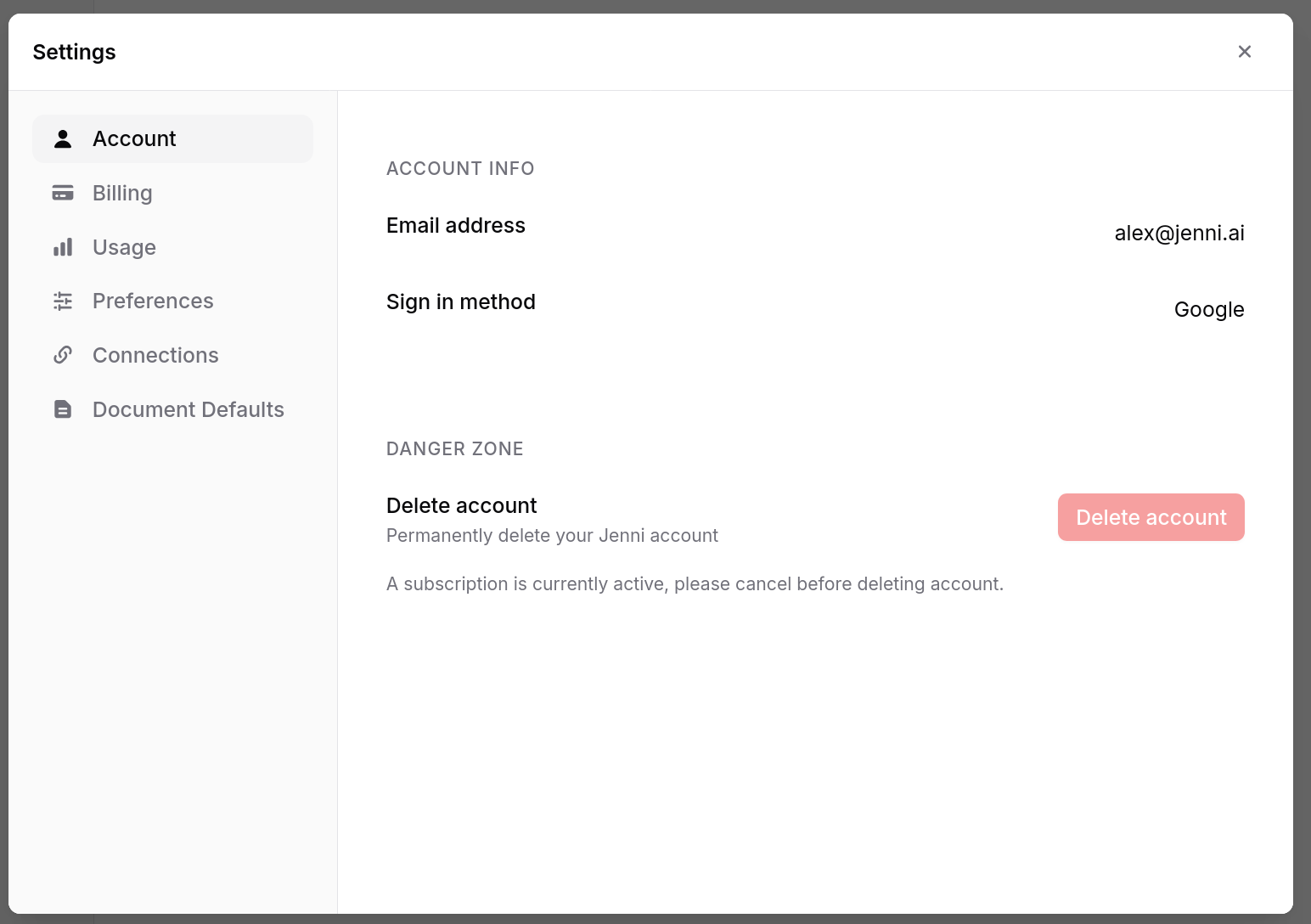
Opening Settings
Click the gear icon in the sidebar, or open your profile menu and select Settings.
Account Settings
The Account section contains your core identity and access controls:
- Name — Update your display name.
- Email — Change the email address associated with your account.
- Password — Set or update your password.
- Delete Account — Permanently remove your account and all associated data.
Preferences
- Interface language — Select the language for menus, buttons, and system messages. See Language for the full list of supported languages.
- Autocomplete toggle — Enable or disable AI autocomplete suggestions globally.
Billing Management
The Billing section shows your current plan, usage metrics, and renewal date. From here you can:
- Upgrade or downgrade your plan
- Update your payment method
- View billing history and download invoices
- Monitor feature usage for the current cycle
See Plans and Billing for details on available plans.
Connections
Connect external reference managers and tools to sync your research library:
- Zotero — Connect or disconnect your Zotero account. Once connected, your Zotero library is accessible from the citation panel in the editor.
- Mendeley — Connect or disconnect your Mendeley account. Works the same way as the Zotero integration.
- Browser extension — Link your Jenni browser extension for saving sources directly from the web.
Each connection shows its current sync status. Disconnect and reconnect if syncing stalls.
Document Defaults
These settings apply to all new documents. Existing documents retain whatever settings they were created with.
- Autocomplete — Toggle AI autocomplete on or off by default for new documents.
- Default citation style — Choose from APA, MLA, Chicago, IEEE, Harvard, or search the full CSL repository for additional styles.
- Font style — Select between serif (formal) and sans-serif (modern/clean) for the editor’s default typeface.
Per-Document Settings
Each document also has its own settings, accessible by clicking the gear icon in the top-right of the editor. These override the global defaults for that document only:
- Font style — Serif or sans-serif for this document
- Autocomplete — Toggle autocomplete on or off
- Document prompt — Update or rewrite the original prompt you gave Jenni when starting the document. This helps the AI understand the topic and context of your writing.
- Citation style — Choose from 1,700+ styles. You can also change the style from the dropdown at the bottom of your reference list.
- Auto-cite from external sources — Toggle whether autocomplete and chat pull citations from Jenni’s web database
- Auto-cite from your Library — Toggle whether citations come from your uploaded PDFs. When enabled, you can limit results to specific collections.
- Citation recency filter — Limit citations to sources published after a specific year, keeping your references current
Deleting Your Account
Account deletion is permanent and cannot be undone.
- Go to Settings > Account.
- Click Delete Account.
- Read the warning about data removal.
- Confirm your identity.
- Click Permanently Delete.
All documents, library items, connected accounts, and subscription data are removed. Active subscriptions are cancelled immediately with no further charges.
Troubleshooting
Settings are not saving. Refresh the page and try again. Check your internet connection. If the problem persists, try clearing your browser cache or using a different browser.
Cannot change email address. Verify that the new email is not already associated with another Jenni account. If you signed up through a third-party provider (Google, etc.), email changes may need to be made through that provider first.