
Settings
Configure your account, preferences, connections, and document defaults.
FAQ ↓The Settings page is where you manage your account details, interface preferences, external connections, and document defaults.
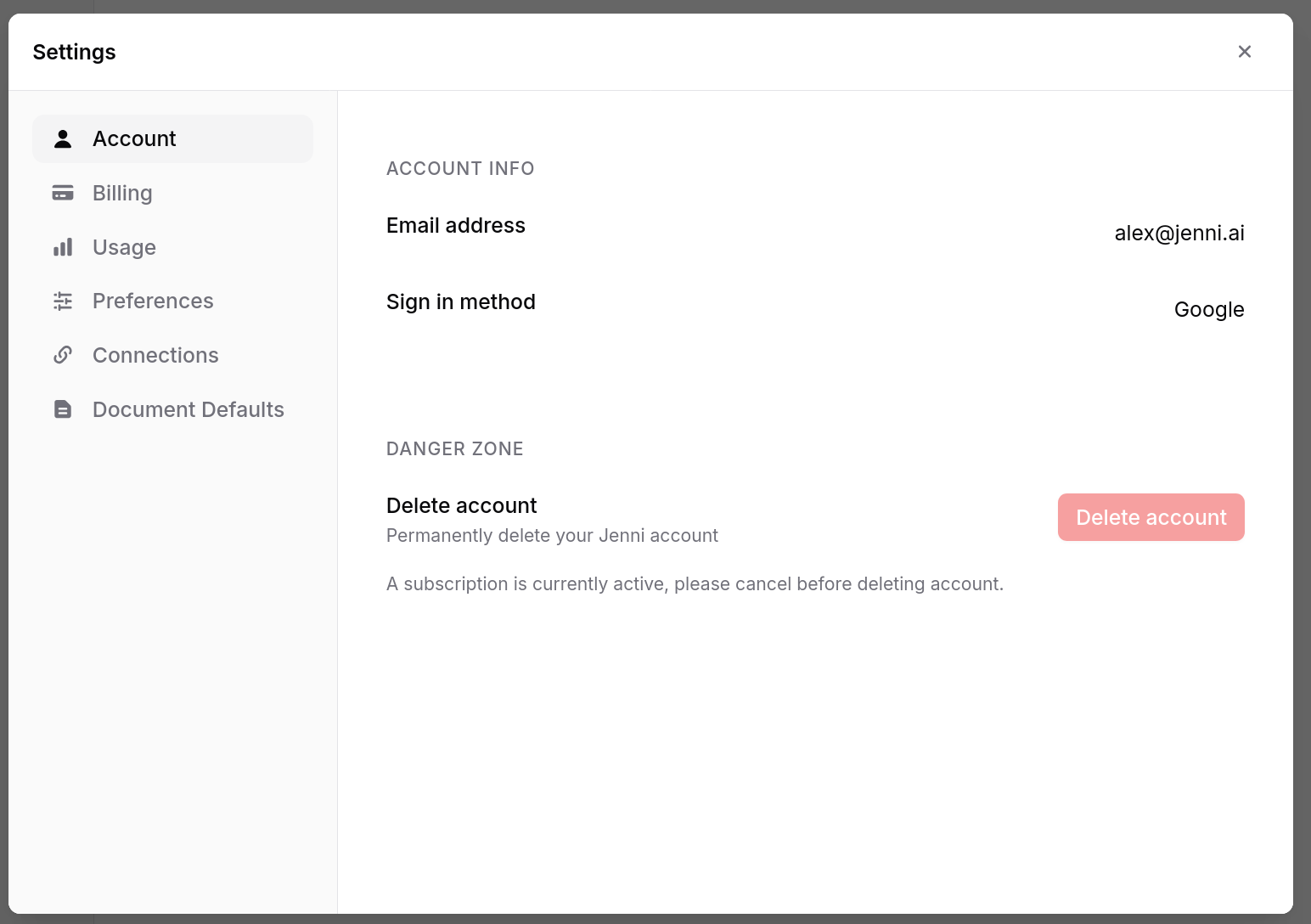
Opening Settings
Open your profile menu and select Settings.
Account Settings
The Account section contains your core identity and access controls:
- Email — Change the email address associated with your account.
- Sign in method — See whether the account uses email or Google sign-in.
- Delete Account — Permanently remove your account and all associated data.
Changing Your Email Address
If you sign in with email and password, you can change the address associated with your account:
- Go to Settings > Account and click Change beside your current email.
- Enter your current password to verify your identity.
- Enter the new email address and click Send verification email.
- Open the message sent to the new address and click the verification link.
Jenni confirms the change when the link opens and continues to onboarding. The Change button is available when email and password are your only sign-in method. If you use Google or another provider, manage the address through that provider.
Preferences
- Interface language — Select the language for menus, buttons, and system messages. See Language for the full list of supported languages.
- Autocomplete toggle — Enable or disable AI autocomplete suggestions globally.
- Theme — Choose System, Light, Dark, Paper Light, Paper Dark, High Contrast Light, or High Contrast Dark. System follows your operating-system appearance. If your system requests increased contrast and you have not chosen a theme in Jenni, the interface uses High Contrast automatically. A theme you select in Jenni overrides that system contrast preference.
- Privacy — In regions where GDPR consent applies, click Manage cookie preferences to review or change preferences, statistics, and marketing consent. Turning off marketing consent also removes your address from Jenni’s marketing email list.
Reduced Motion
Jenni follows your operating system’s Reduce Motion preference automatically. When enabled, sliding and layout animations are minimized, transitions complete almost immediately, and smooth scrolling is disabled. No separate Jenni toggle is required.
Billing Management
The Billing section shows your current plan and renewal date. From here you can:
- Upgrade or downgrade your plan
- Update your payment method
- View billing history and download invoices
- Open the Usage tab to monitor feature usage for the current cycle
See Plans and Billing for details on available plans.
Connections
Connect external reference managers and tools to sync your research library:
- Zotero — Connect your Zotero account or change the connected account. Your Zotero library is accessible from the citation panel in the editor.
- Mendeley — Connect your Mendeley account or change the connected account.
- Browser extension — Install the Jenni browser extension to save sources from the web.
AI Assistants Early Access
In Settings > Connections, the AI assistants section offers Early access for Use Jenni from Claude or ChatGPT. Select Early access, choose what you would use the connection for or enter your own idea under Other, optionally choose Claude, ChatGPT, or Other, then select Request early access. The section confirms We’ll email you when it’s ready after your request. This form registers your interest in a future connection.
Document Defaults
These settings apply to all new documents. Existing documents retain whatever settings they were created with.
- Autocomplete — Toggle AI autocomplete on or off by default for new documents.
- Default citation style — Choose from APA, MLA, Chicago, IEEE, Harvard, or search the full CSL repository for additional styles.
- Font style — Select between serif (formal) and sans-serif (modern/clean) for the editor’s default typeface.
Per-Document Settings
Each document also has its own settings. Click Document settings in the editor toolbar or editor menu to open the settings panel. These override the global defaults for that document only:
- Font style — Serif or sans-serif for this document
- Autocomplete — Toggle autocomplete on or off
- Document prompt — Update or rewrite the original prompt you gave Jenni when starting the document. This helps the AI understand the topic and context of your writing.
- Citation style — Choose from 1,700+ styles. You can also change the style from the dropdown at the bottom of your reference list.
- Auto-cite from external sources — Toggle whether autocomplete and chat find citations beyond your Library
- Auto-cite from your Library — Toggle whether citations come from your uploaded PDFs. When enabled, you can limit results to specific collections.
- Citation recency filter — Limit citations to sources published after a specific year, keeping your references current
Deleting Your Account
Account deletion cannot be undone. Before deleting your account, cancel any active subscription from Settings > Billing in a desktop browser.
- Go to Settings > Account.
- Click Delete Account.
- Read the warning about data removal.
- Confirm your identity.
- Click Permanently Delete.
Deleting your account removes your workspace content and closes associated connections. Some records may be retained where required for billing, security, fraud prevention, or legal compliance. See Privacy for details.
Troubleshooting
Settings are not saving. Refresh the page and try again. Check your internet connection. If the problem persists, try clearing your browser cache or using a different browser.
Cannot change email address. Confirm that the new address is valid and is not already associated with another Jenni account. If the Change button is absent, your account uses a third-party sign-in provider. If a verification link has expired, restart the flow from Settings > Account to receive a new link.