
AI Autocomplete
Context-aware sentence completion that suggests text as you type.
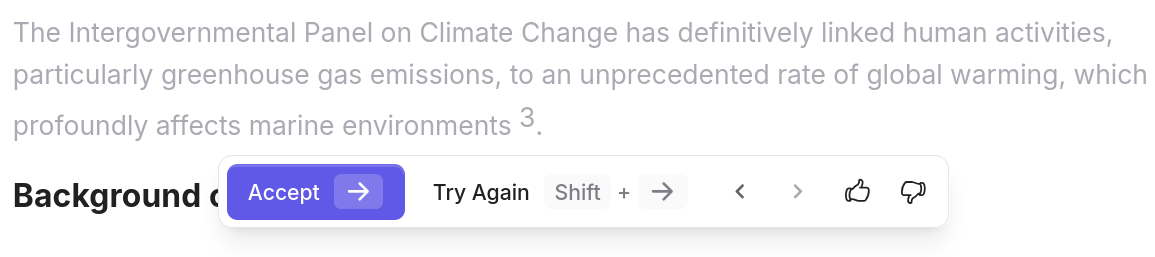
FAQ ↓AI Autocomplete analyzes your document (headings, previous paragraphs, citations, and current sentence) to generate relevant continuations as you write. Suggestions appear as gray text ahead of your cursor.
How It Works
- You type a few words or sentences
- The AI reads your document context, including headings, prior text, and any cited sources
- A gray suggestion appears inline, extending your current sentence or starting a new one
- You accept, partially accept, or dismiss the suggestion
The model considers the full document structure, not just the current paragraph. Headings, subheadings, and cited material all influence what gets suggested.
Managing Suggestions
Accepting Suggestions
| Shortcut | Behavior |
|---|---|
Right Arrow (→) | Accept the full suggestion (always active) |
Alt/Option + Right Arrow | Accept one word at a time |
Shift + Right Arrow | Cycle to an alternative suggestion |
Tab | Accept the full suggestion |
Word-by-word acceptance is useful when the beginning of a suggestion is good but you want to diverge partway through.
Dismissing Suggestions
Press Esc to dismiss the current suggestion explicitly. You can also just keep typing. The suggestion disappears and a new one generates based on your updated text.
Manual Trigger
If no suggestion appears automatically, press Ctrl/Cmd + / to force one. This is helpful after a pause or when you want a fresh suggestion at a specific point.
Configuration
Smart Citations While Writing
As you write, autocomplete can automatically suggest in-text citations from your uploaded sources when relevant. Citations appear inline within the suggestion text, ready to be accepted or ignored along with the rest of the suggestion.
Citation integration is controlled per-document. Open the document settings panel to toggle:
- Auto-cite from external sources – pulls from Jenni’s database of online sources and articles
- Auto-cite from your Library – pulls from uploaded PDFs in your library
When using library citations, you can limit results to specific collections you have created, which is useful for focused source sets. When both options are disabled, suggestions draw only from your written text and headings. See Citation Management for details on how citations work across the editor.
Mid-Paragraph Suggestions
Autocomplete does not only work at the end of a sentence. Place your cursor anywhere in a paragraph and Jenni generates context-aware suggestions from that point. This is useful for inserting new material between existing sentences or expanding on an idea mid-paragraph.
Multi-Language Support
Autocomplete matches the language set in your document settings. If your document is configured for Spanish, suggestions generate in Spanish. Switch the language setting to change the suggestion language. The AI adapts to any supported language.
Usage Limits
| Plan | Autocomplete Suggestions |
|---|---|
| Free | 10 per day |
| Plus | 5,000 per month |
| Pro | Unlimited |
Limits reset at the start of each billing period. A counter in the settings panel shows remaining suggestions. See Plans and Billing for full plan details.
Keyboard Shortcuts
| Shortcut | Action |
|---|---|
→ (Right Arrow) | Accept full suggestion |
Alt/Option + → | Accept one word |
Shift + → | Cycle alternative |
Tab | Accept full suggestion |
Esc | Dismiss suggestion |
Ctrl/Cmd + / | Force suggestion |
Best Practices
- Write a few sentences first. Autocomplete improves with more context. Starting from a blank document yields generic suggestions; a paragraph or two gives the AI something to work with.
- Use clear headings. The model weighs headings heavily. A heading like “Methodology” produces more relevant suggestions under that section than a generic “Section 2.”
- Verify factual claims. Suggestions are generated text, not verified facts. Always confirm statistics, dates, and specific claims against your sources.
Troubleshooting
Suggestions are not appearing
Check that autocomplete is enabled in your document settings. Confirm you have remaining suggestions in your plan. Try pressing Ctrl/Cmd + / to trigger manually.
Suggestions are low quality or off-topic Add more context: write another sentence or two, refine your headings, or adjust the document language setting. The model relies on surrounding text; sparse documents produce weaker suggestions.