
AI Chat
A conversational assistant that reads your document, finds sources, and helps you write.
FAQ ↓AI Chat is a conversational assistant built into the editor. It reads your entire document, pulls in sources from your library and the web, and responds with context-aware answers that reference specific sections of your work.
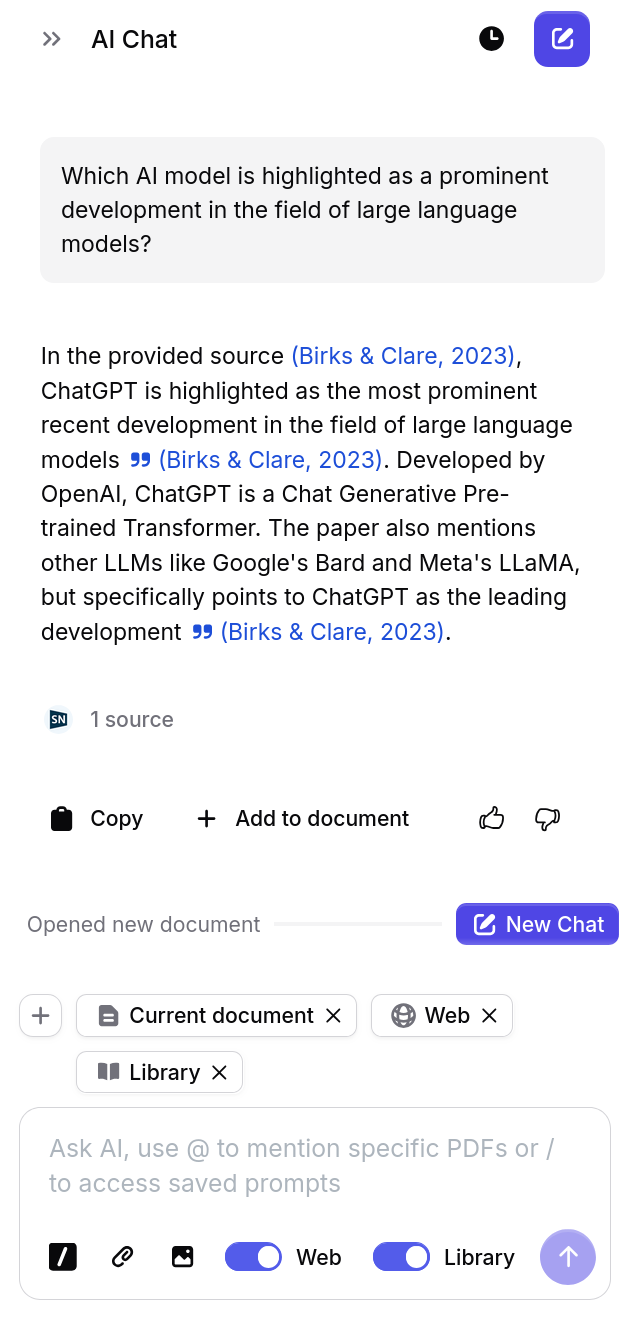
Opening the Chat
Click New > AI Chat from the left sidebar, or click the AI Chat icon in the right sidebar. The chat panel slides open to the right of your document. You can resize the panel by dragging its left edge, or collapse it by clicking the icon again.
What the Chat Can Do
AI Chat handles four broad categories of requests:
- Writing help – Draft paragraphs, rephrase sentences, suggest transitions, or continue from where you left off. Example: “Write a paragraph connecting my methodology section to the results.”
- Content questions – Ask about anything in your document and get answers grounded in what you have written. Example: “What claims in my introduction are not yet supported by a citation?”
- Editing suggestions – Request targeted feedback on tone, clarity, structure, or argumentation. Example: “Is my conclusion too vague? Suggest a more specific closing statement.”
- Research assistance – Find sources, summarize papers, or compare findings across your library. Example: “Find recent papers on transformer architectures for protein folding.”
Document Context
The AI reads your full document before responding. This means it can:
- Reference any section by heading or content
- Include citations from your bibliography
- Understand relationships between arguments across the document
- Track changes you have made during the current session
You do not need to copy-paste text into the chat. The AI already has access to everything in the editor.
Source Control
Source Control lets you choose exactly which knowledge sources the AI uses when answering. Click the + icon above the chat box to toggle between:
- Current document – The full text of your working draft
- Library sources – Specific PDFs or collections from your library
- Web – External journal databases and web results
- Selected text – Highlight text in your draft and click Chat to add it as a temporary source
Sources you select appear as tags above the chat input. Click the x on any tag to remove it. This gives you precise control over what the AI references when generating answers.
Send Quotes to Chat
You can send specific text from your document directly into AI Chat without copy-pasting:
- Highlight a sentence or paragraph in your draft
- Click the Chat button in the selection toolbar
- Jenni adds your selection to the chat as a temporary source
This is a quick way to ask targeted questions about specific parts of your writing or have the AI explain or revise a passage in context.
Citation Support in Responses
When the AI references a source, it appears as an inline citation in the response. Hover over a citation to see its full metadata (title, authors, year, and journal). Click the citation to navigate to its entry in your bibliography or library.
Conversation Memory
The chat retains recent messages within a single thread. A thread can hold up to 20 messages or 100,000 characters, whichever is reached first. When a thread reaches its limit, older messages are trimmed from the beginning. Starting a new thread clears the history.
Managing Chat History
Click the clock icon in the top-right corner of your workspace to open your chat history. From here you can:
- Revisit past chats and pick up where you left off
- Rename a chat by hovering and clicking the pencil icon
- Delete a chat by clicking the trash icon
- Start a new thread by clicking the + button next to the clock icon
Use separate threads to organize your thinking – one thread per research question, paper, or source set.
Configuration
Chat Preferences
Click the preferences button in the chat footer to configure how the AI searches for information:
| Setting | Options | Default |
|---|---|---|
| Web search | Ask before searching / Always search | Ask |
| Library search | Ask before searching / Always search | Ask |
When set to Ask, the AI will confirm before running a web or library search. When set to Always, it searches automatically whenever your question would benefit from external information.
Usage Limits
| Plan | Monthly Limit |
|---|---|
| Free | 5 messages (one-time) |
| Plus | 500 messages per month |
| Pro | Unlimited |
Attaching Files to Chat
Images
Attach an image using any of these methods:
- Click the photo icon in the chat input
- Paste with
Ctrl/Cmd + V - Drag and drop directly into the chat input
The AI can analyze charts, diagrams, screenshots, and handwritten notes. It will describe what it sees and answer questions about the visual content.
PDFs
Click the paperclip icon in the chat input to attach a PDF. The file uploads to your library automatically. Once attached, the AI can summarize the document, answer questions about its content, extract key findings, and help you cite it in your work.
Managing Attachments
Attached files appear as preview thumbnails below the chat input. Click the x on any thumbnail to remove it before sending. You can attach multiple files to a single message.
File Limits
| Limit | Free | Plus | Pro |
|---|---|---|---|
| Image size | 15 MB | 15 MB | 15 MB |
| PDF pages | 150 | 500 | 1,000 |
| PDF file size | 25 MB | 100 MB | Unlimited |
Best Practices
- Be specific. Instead of “help me write,” try “write a topic sentence for my second body paragraph that connects back to the thesis.”
- Reference your document. Ask about specific sections by name: “Does my literature review cover any papers published after 2022?”
- Iterate. If the first response is not quite right, follow up with refinements rather than starting over.
- Use selected text. Highlight a passage before sending a message to focus the AI on that specific content.
- Attach sources. Upload a PDF and ask the AI to compare its findings with your existing arguments.
Troubleshooting
Chat is not responding
Reload the page and try again. If the issue persists, check your internet connection. Long documents may take a few extra seconds to process on the first message of a new thread.
Responses are low quality or off-topic
Make sure your document has enough content for the AI to work with. Vague prompts produce vague answers. Add detail to your question or highlight a specific section before asking.
Citations are not appearing in responses
The AI only cites sources it can find in your library or through search. If you expected a citation, verify the source exists in your library and that library search is enabled in chat preferences.
Privacy and Data Protection
Your document text is sent to the AI as context for generating responses. Conversations are personal to your account and are not shared with collaborators, even on shared documents. You can delete individual threads or clear your full chat history at any time.
Jenni does not use any user data – text, prompts, citations, or uploaded files – to train or fine-tune AI models. This applies across all features, including autocomplete, citation search, editing tools, and AI Chat. When Jenni integrates with third-party LLM providers, your data is not used for their model training either. Uploaded PDFs and research files are encrypted in transit and securely stored. Any content you create using Jenni remains yours.