
Outline Builder
Generate a structured heading hierarchy from your document title before you begin writing.
FAQ ↓The Outline Builder generates a heading structure for your document based on its title. It gives you a starting skeleton (sections, subsections, and a logical flow) that you can rearrange, rename, and extend before inserting it into the editor.
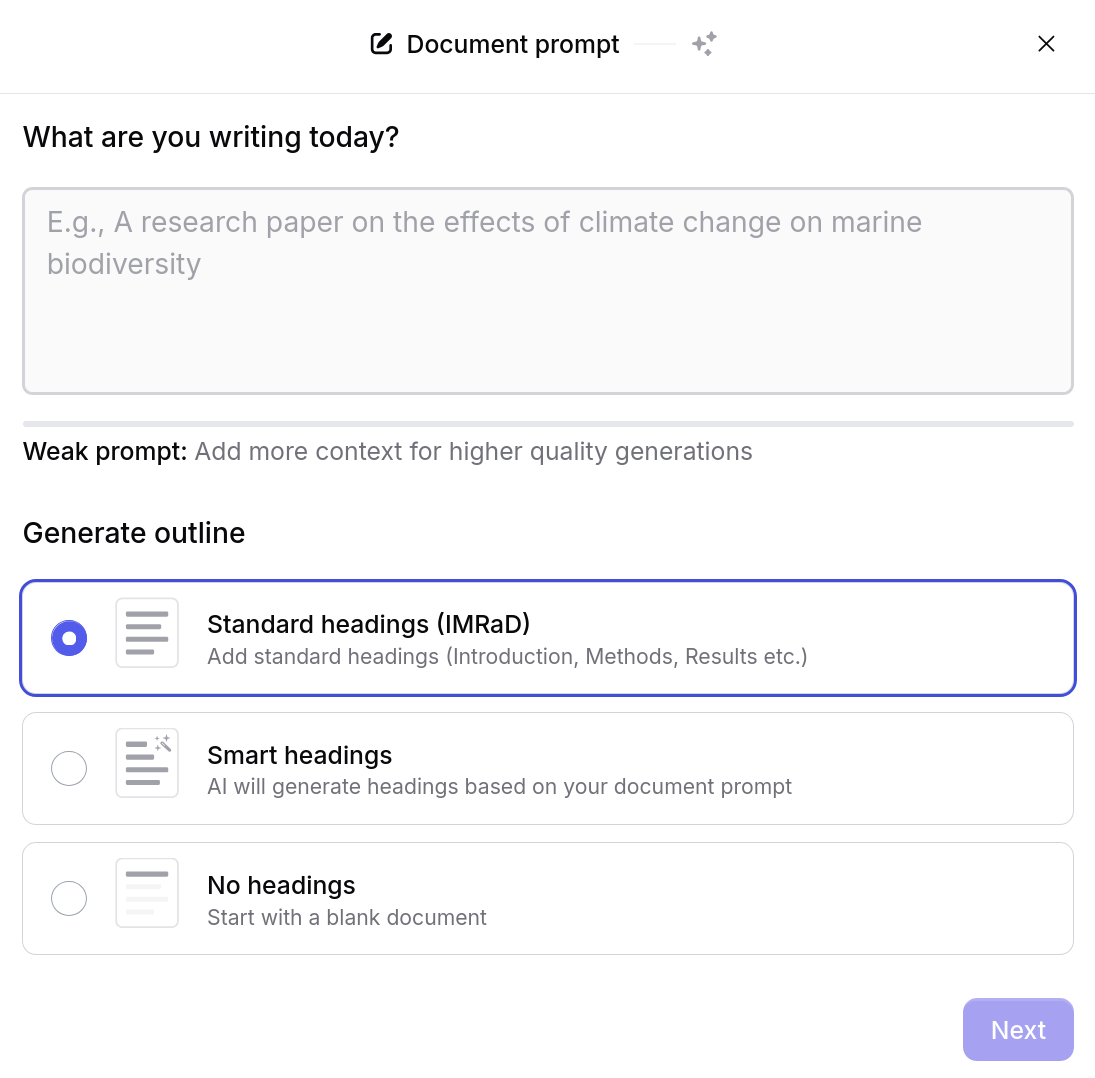
Features
Heading Modes
The Outline Builder offers three heading modes that control how the AI structures your outline:
| Mode | Behavior | Best For |
|---|---|---|
| No Headings | Produces a flat outline with no heading hierarchy | Short documents, memos, or flowing prose without sections |
| Standard | Follows a conventional intro/body/conclusion structure | Essays, reports, and assignments with a predictable format |
| Smart | Lets the AI determine the best structure based on the title and topic | Unfamiliar subjects, interdisciplinary work, or complex arguments |
Select the mode before generating. You can regenerate with a different mode at any time.
Title Strength Indicator
A visual meter appears below the title field, rating the quality of your title across three dimensions:
- Clarity – How clearly the title communicates the topic
- Specificity – How narrowly the title defines the scope
- Engagement – How well the title signals relevance to a reader
The meter updates in real time as you edit the title. A stronger title produces a more focused and useful outline.
Using the Outline Builder
Creating an Outline
- Open the Outline Builder from the toolbar or the slash command menu (
/outline) - Enter your document title in the title field
- Click Generate Outline
- Review the generated heading hierarchy
- Click Insert into document to add the outline to your editor
The outline is inserted as a series of headings at the appropriate levels (H2, H3, H4) in the document editor. Body text is not generated, only the structural framework.
Editing the Outline
After the outline is generated, you can modify it directly in the builder:
- Rename – Click any heading text to edit it in place
- Reorder – Drag a heading up or down to change its position
- Change level – Indent a heading to make it a subsection, or outdent it to promote it to a higher level
- Add – Click the + button to insert a new heading at any position
- Delete – Click the delete icon on any heading to remove it
All changes happen in the builder preview. Nothing is written to your document until you click Insert into document.
Troubleshooting
The outline is not generating
Check that you have entered a title with at least a few words. Single-word titles or empty fields do not provide enough context for the AI to produce a meaningful structure.
The generated outline does not match my topic
Try switching to Smart mode, which gives the AI more flexibility in choosing a structure. You can also make the title more specific. “The Effects of Urbanization on Freshwater Biodiversity in Southeast Asia” will produce a more relevant outline than “Urbanization and Biodiversity.”
Insert is not working
Verify that the editor is open and that you have an active document. The outline can only be inserted into the currently open document.
Language
Jenni automatically adapts to any language you write in. Write your initial prompt or title in another language (Spanish, French, Chinese, etc.) and Jenni generates the outline in the same language. This applies to AI Chat and Autocomplete as well.
Tips
- Be specific with your title. The outline quality depends directly on how much information the title provides. Include the subject, scope, and angle when possible.
- Use Smart mode for unfamiliar topics. When you are not sure how a document should be organized, Smart mode often suggests structures you might not have considered.
- Edit the outline before inserting. The generated structure is a starting point. Rename headings to match your voice, reorder sections to suit your argument, and delete anything that does not fit.
Frequently Asked Questions
How do I generate an outline in Jenni?
/outline in the slash command menu. Enter your document title, click Generate Outline, then click Insert into document to add the headings to your editor.