
Reviews
AI-powered proofreading and claim confidence checks with inline suggestions.
FAQ ↓Reviews runs AI analysis across your document and returns inline suggestions that you can accept or reject one by one. There are two review types: Proofread for grammar and style, and Claim Confidence for verifying the strength of factual assertions.
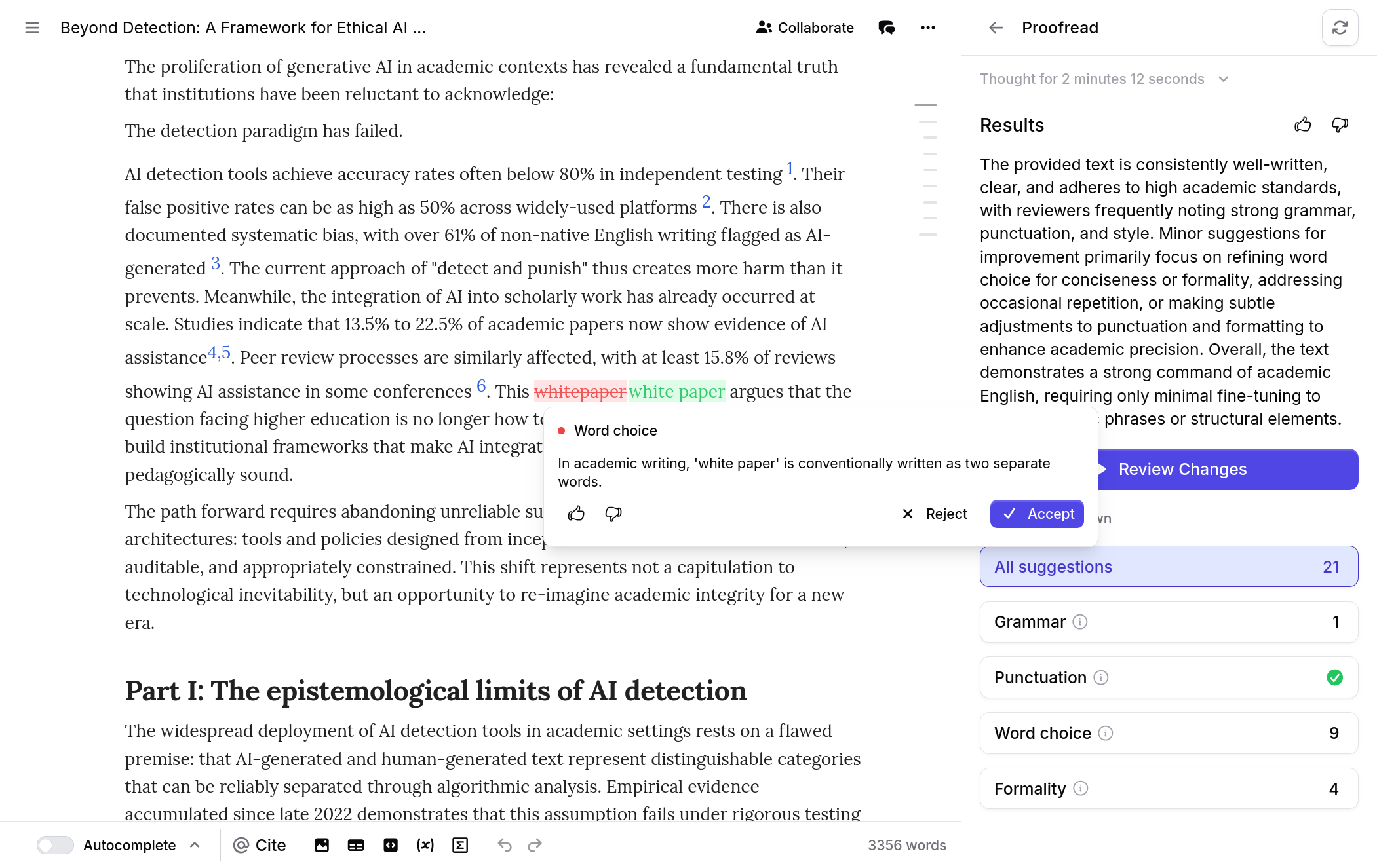
Accessing Reviews
Open the Reviews panel from the right sidebar. The panel shows available review types and any previous results.
Running a Review
Full Document
- Click the review type you want to run, Proofread or Claim Confidence
- Click Run
- A progress indicator appears: “Thinking for X seconds” with a section progress bar (e.g., “3/5 sections”)
- When complete, results appear in the panel
Selected Text
- Select the text you want to review
- Open the context menu (right-click or use the floating toolbar)
- Choose Review, then select the review type
- Results are scoped to your selection and marked with a Selection badge in the panel
Understanding Results
Results open with an expandable Summary that describes the overall findings. Below the summary, category breakdown buttons show how many suggestions fall into each category. Click a category button to filter the results list.
Review Categories
Proofread
| Category | What It Catches |
|---|---|
| Grammar | Subject-verb agreement, tense consistency, article usage, modifier placement |
| Punctuation | Missing or misplaced commas, semicolons, periods, and quotation marks |
| Word Choice | Imprecise language, malapropisms, commonly confused words |
| Formality | Contractions, colloquialisms, or casual phrasing in formal writing |
| Passive Voice | Sentences where the subject receives the action rather than performing it |
| Repetition | Words or phrases repeated within close proximity |
| Formatting | Inconsistent heading levels, list formatting, or spacing issues |
Claim Confidence
| Category | What It Flags |
|---|---|
| Unsupported | Claims with no citation or supporting evidence |
| Weak Evidence | Claims backed by a source that does not strongly support the assertion |
| Overstated | Language that exaggerates what the cited source actually demonstrates |
| Misattributed | Claims attributed to a source that does not make that argument |
| Contradicted | Claims that conflict with evidence in the cited source or elsewhere in the document |
| Unverifiable | Claims that cannot be checked against available sources |
Inline Suggestions
Each suggestion appears directly in the editor text. Red strikethrough marks text to be removed. Green highlighting marks proposed insertions. Click any suggestion to open a detail popup showing:
- The reasoning behind the suggestion
- The category it belongs to
- For Claim Confidence: excerpts from the relevant citation
Review Mode
After results are generated, click Enter Review Mode to step through suggestions one at a time.
How It Works
- The editor locks to prevent manual edits during review
- A floating toolbar appears at the top of the editor
- Suggestions are highlighted sequentially, with the active suggestion in focus
- A counter shows your position (e.g., “3/15”)
Keyboard Shortcuts
| Key | Action |
|---|---|
Y | Accept the current suggestion |
N | Reject the current suggestion |
↓ | Move to the next suggestion |
↑ | Move to the previous suggestion |
Esc | Exit Review Mode |
Bulk Actions
- Accept All – Applies every remaining suggestion at once
- Reject All – Dismisses every remaining suggestion
When all suggestions have been resolved, Review Mode exits automatically.
Configuring Claim Confidence Sources
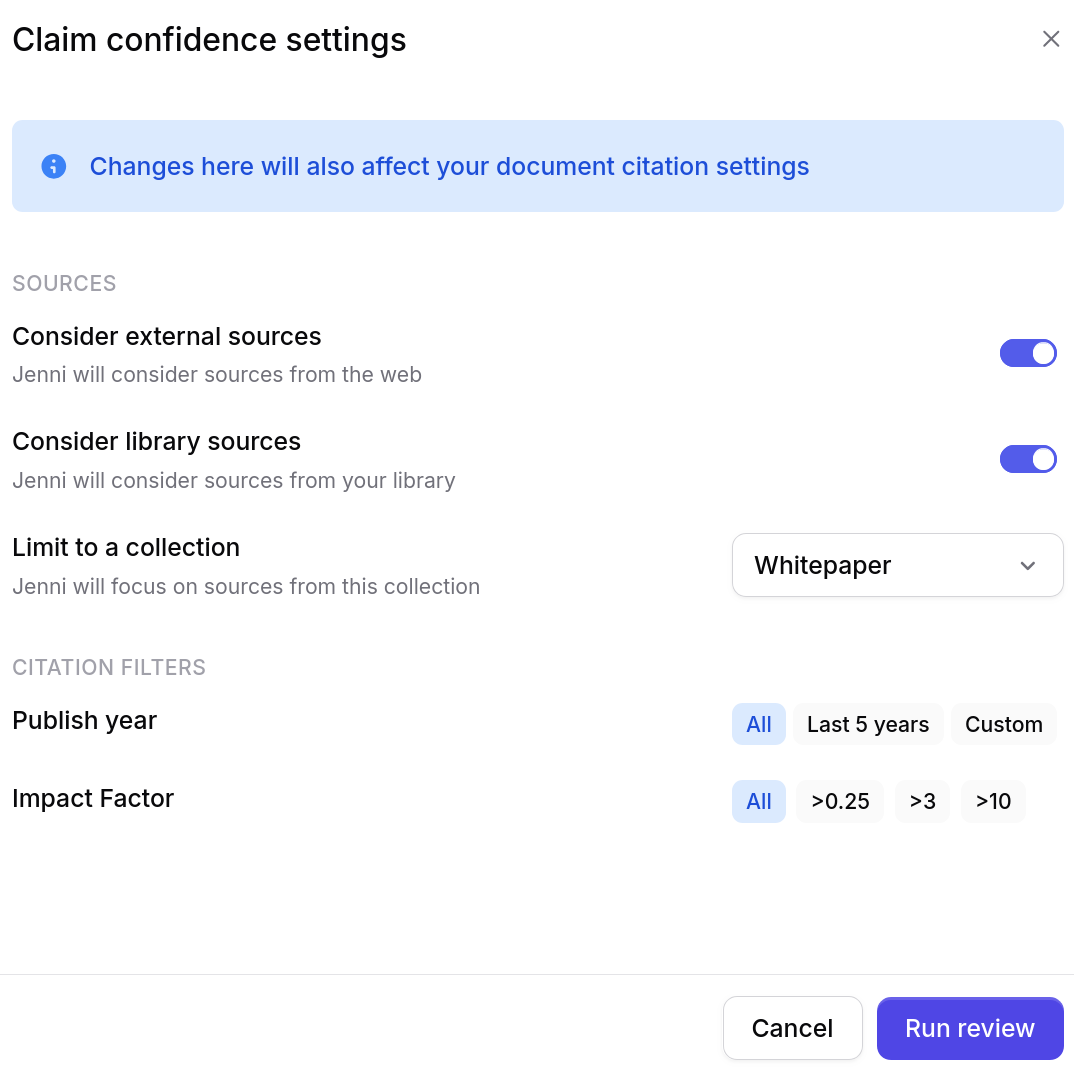
Click the settings gear next to Claim Confidence to control which sources the AI checks claims against:
- Library toggle – Include or exclude your uploaded library sources
- External toggle – Include or exclude open access papers and web sources
- Collection filter – Limit source checking to a specific library collection
- Year range – Set a minimum and maximum publication year
- Impact factor – Set a minimum journal impact factor for source consideration
These settings apply to all future Claim Confidence runs until changed.
Managing Reviews
Re-running and Stopping
Click the refresh icon next to a review type to re-run it. This is useful after making edits based on previous results.
Click the stop button during a run to cancel it. When stopped, the previous results are restored so you do not lose earlier feedback.
Providing Feedback
Each review result and individual suggestion includes thumbs up and thumbs down buttons. This feedback helps improve the quality of future reviews. Feedback is anonymous and does not affect your current results.
Troubleshooting
No suggestions found
The AI found nothing to flag in your document or selection. This is not an error. It means the text passed the review criteria.
Review is taking a long time
Longer documents take more time to process. The section progress bar (e.g., “3/5 sections”) indicates how far along the review is. Documents over 50,000 characters may take up to a minute.
“Running for another document” message
Only one review can run at a time across all your open documents. Wait for the current review to finish, or stop it to start a new one.
Suggestions are not appearing in the editor
Check the category filter buttons in the results panel. If a category is deselected, its suggestions are hidden in the editor. Click All to show every suggestion.
Review stopped unexpectedly
A network interruption or timeout may have caused the review to stop. Click the refresh icon to re-run. Previous results are preserved until a new run completes.
Frequently Asked Questions
How do I proofread my document with Jenni AI?
What is Claim Confidence in Jenni?
How do I accept or reject review suggestions?
Y to accept, N to reject, or use the arrow keys to navigate. You can also use Accept All or Reject All for bulk actions.