
Document Cloning
Duplicate a document to create an independent copy for templates, experiments, or forks.
FAQ ↓Cloning creates an exact copy of a document’s content and formatting. The clone is completely independent; edits to one do not affect the other.
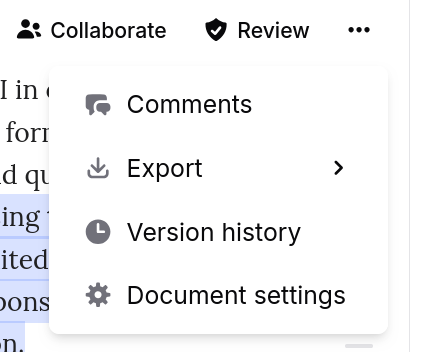
How to Clone
- Locate the document in the Documents panel of the sidebar
- Right-click the document title, or click the three-dot menu next to it
- Select Duplicate
- A notification confirms “Document cloned”
The cloned document appears in your document list with the same title. You can rename it immediately.
What Gets Copied
The clone includes everything that makes up the document content:
- All text and formatting (bold, italic, underline, strikethrough)
- Headings, lists, and block quotes
- Tables and their cell formatting
- Code blocks with language selection
- Math equations
- Embedded images
- Citation style setting
- Font settings
What Does Not Get Copied
Certain metadata and collaboration state are excluded from the clone:
- Collaborators — The clone is private to you. No one from the original document has access.
- Comments — All comment threads are stripped from the clone.
- Version history — The clone starts with a fresh history. The original document’s versions remain untouched.
- Share links — No share links carry over. You generate new ones if needed.
When to Use Cloning
- Create a template. Write a document with your preferred structure, headings, and formatting, then clone it each time you start a new piece.
- Experiment safely. Clone a working draft before making large structural changes. If the experiment fails, the original is untouched.
- Fork a shared document. Clone a collaborator’s document to take it in a different direction without affecting the original.
- Archive a snapshot. Clone a document at a milestone to preserve that version as a separate file.
Access and Restrictions
Any user with access to a document can clone it. The cloned document is owned by the person who performed the clone, regardless of who owns the original.
Archived documents cannot be cloned. Unarchive the document first if you need to duplicate it.
Frequently Asked Questions
How do I duplicate a document in Jenni?
Right-click the document in the sidebar or click the three-dot menu next to its title, then select Duplicate. A copy appears in your document list immediately.
Does cloning a document copy the comments and collaborators?
No. Cloned documents do not include comments, collaborators, version history, or share links. The clone is private to you and starts fresh.
Can I use cloning to make a template?
Yes. Create a document with your preferred structure, headings, and formatting, then clone it each time you need to start a new piece with the same layout.
What gets copied when I clone a document?
All text, formatting, headings, lists, tables, code blocks, math equations, images, citation style, and font settings are copied. Collaboration data like comments, share links, and version history are not.
Who owns a cloned document?
The person who performs the clone owns the new copy, regardless of who owns the original document.
Can I clone an archived document?
No. You must unarchive the document first before you can duplicate it.