
Publishing
Create a public read-only link for sharing finished work with anyone.
FAQ ↓Publishing creates a public, read-only URL for your document. Anyone with the link can read the content without a Jenni account. This is separate from the collaboration share link, which grants editing access.
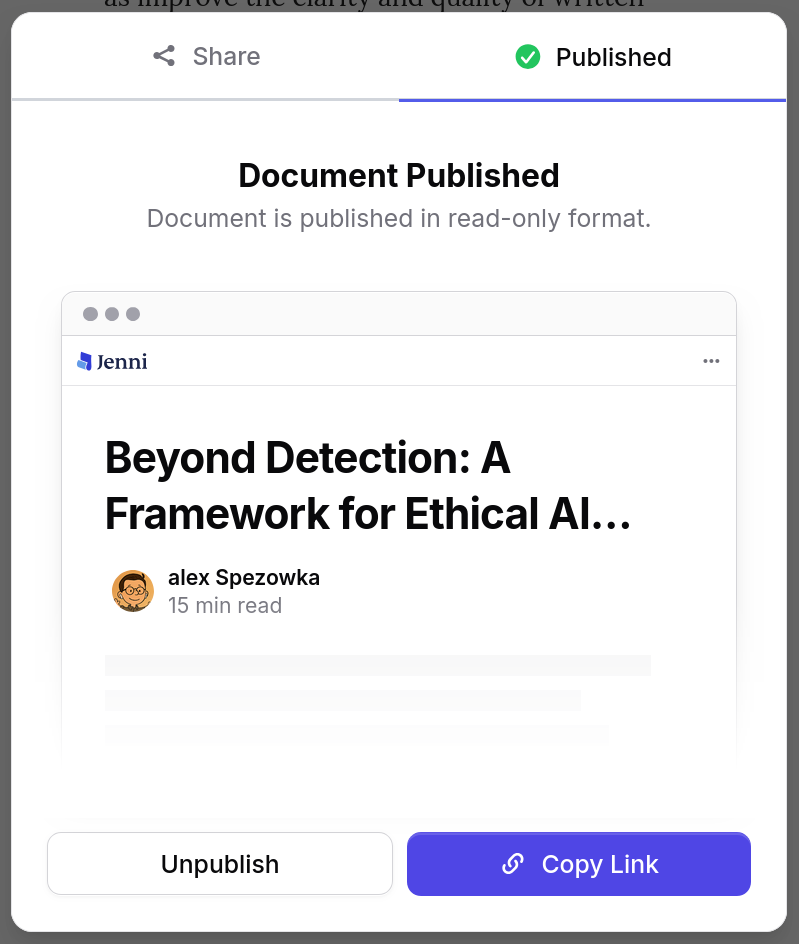
How to Publish
- Open the document you want to publish
- Click Share in the top-right corner
- Switch to the Publish tab
- Click Publish Document
- The public URL is copied to your clipboard automatically
The published URL follows the format jenni.ai/published/docs/{id}.
How to Unpublish
- Click Share and switch to the Publish tab
- Click Unpublish
- The public link immediately returns a 404 page
Unpublishing is instant. Anyone who visits the old link after unpublishing will see a not-found page.
What Readers See
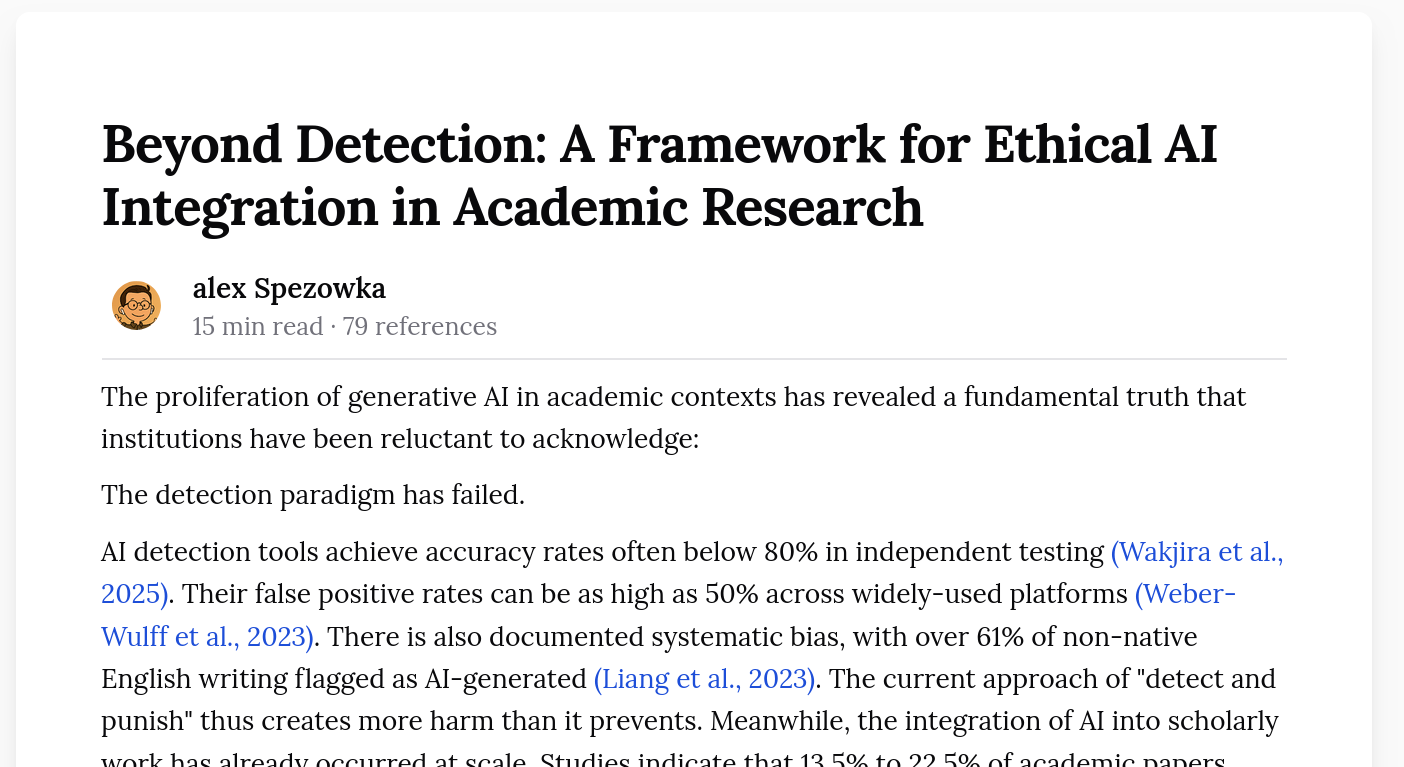
The published view presents your document in a read-only layout that preserves your chosen font style. The page includes:
- Header bar — Jenni logo, Copy Link, Print, and Jump to References buttons
- Document body — Full text with formatting intact
- Bibliography — Displayed at the bottom if the document contains citations
- Clickable references — Readers can click reference links to open cited papers directly
Any updates you make to the document appear live to anyone with the link. There is no separate “published version” – the live document is what readers see.
A “Start Writing” call-to-action appears for readers who do not have a Jenni account.
The header bar auto-hides when the reader scrolls down and reappears when they scroll up, keeping the reading experience uncluttered.
What Publishing Does Not Include
Published documents are strictly read-only. The following features are not available to readers:
- Editing or AI tools
- Comments or comment threads
- Version history
- Password protection
- Link expiration dates
Ownership and Permissions
Only the document owner can publish or unpublish. Collaborators with editor access cannot control the published state of a document.
Link Previews
Jenni generates Open Graph metadata automatically when you publish. Social media platforms and messaging apps will display a card with the document title and a short description when someone shares the link.
Tips
- Review before publishing. Edits you make after publishing are reflected in real time on the public page. There is no separate “published version” — the live document is what readers see.
- Use for portfolios. Published links work well for sharing writing samples, essays, or reports with people outside your team.
- Print-friendly. Readers can use the Print button in the header bar to produce a clean printout or PDF of the published content.
Troubleshooting
| Problem | Cause | Fix |
|---|---|---|
| Published link returns 404 | Document was unpublished or deleted | Re-publish from the Publish tab, or confirm the document still exists |
| Link preview not showing on social media | Platform has not yet crawled the URL | Share the link again after a few minutes; most platforms cache metadata on first fetch |
| Collaborator cannot publish | Only the document owner has publish permissions | Ask the document owner to publish on your behalf |