
Sharing
Share documents with live cursors, simultaneous editing, and link-based access control.
FAQ ↓Jenni documents can be shared with anyone through a link. Every collaborator who joins can edit in real time, with changes merged automatically across all connected clients.
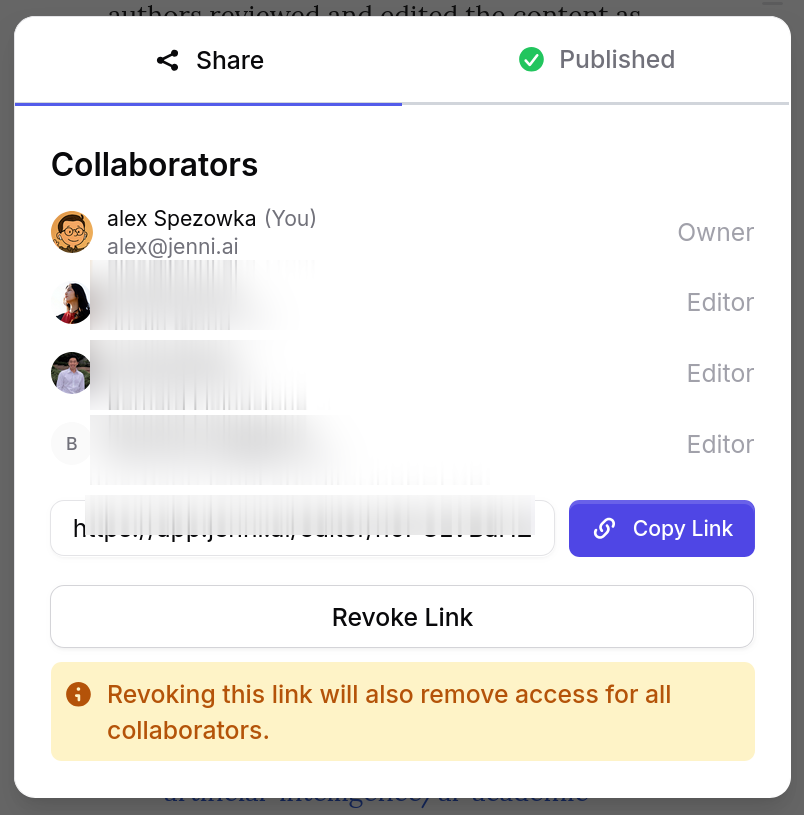
Sharing a Document
- Open the document you want to share
- Click Share in the top-right corner of the editor
- Copy the generated link
- Send the link to your collaborators
Anyone who opens the link is added as an editor with full editing access. No Jenni account is required to view, but collaborators must sign in to edit.
All share links grant editor access. If you need read-only sharing, use the Publish feature instead.
Live Cursors
Each collaborator receives a uniquely colored cursor labeled with their name. As they move through the document, you can see exactly where they are working. Cursor colors are assigned automatically and persist for the duration of the session.
This helps you coordinate edits without stepping on each other’s work.
Simultaneous Editing
Multiple people can type at the same time in the same document. Jenni uses a CRDT-based merge engine (Y.js) to reconcile changes automatically, so there is no need to lock sections or take turns. Edits from all collaborators are applied in real time and conflicts are resolved without manual intervention.
Presence Indicators
Collaborator avatars appear in the top bar of the editor. Each avatar shows whether the collaborator is currently online or offline. This lets you see at a glance who is active in the document.
Managing Collaborators
To view and manage who has access:
- Click Share to open the share modal
- Browse the list of current collaborators
- To remove someone, click the remove button next to their name. Access is revoked immediately.
You can also revoke a share link entirely. When a link is revoked, no new users can join through it. Existing collaborators who already accessed the document retain their access until removed individually.
Offline Editing
If your connection drops, you can continue editing. Changes are queued locally and sync automatically when the connection is restored. A connection status indicator in the editor shows whether you are online, reconnecting, or offline.
Edits made by other collaborators while you were offline will merge with yours upon reconnection.
Best Practices
- Revoke links when done. If a project wraps up or a collaborator leaves, revoke the share link to prevent unintended access.
- Use Publish for read-only sharing. Share links always grant edit access. For portfolios, reviews, or distribution, use the Publish feature.
- Use comments for feedback. Rather than editing someone else’s section directly, leave a comment to suggest changes.
- Review your collaborator list periodically. Open the share modal to confirm that only the right people have access.
Troubleshooting
| Problem | Cause | Fix |
|---|---|---|
| Cannot see other collaborators’ cursors | Browser tab may have lost focus or WebSocket disconnected | Refresh the page and confirm the connection indicator shows online |
| Changes not syncing | Network interruption or firewall blocking WebSocket connections | Check your internet connection; edits will sync automatically once reconnected |
| Share link not working | Link may have been revoked or the document deleted | Generate a new share link from the share modal |