
Sharing
Invite collaborators, manage editing or feedback roles, and control link access.
FAQ ↓Jenni documents support real-time collaboration with three permission roles: Editor, Commenter, and Viewer. New email invitations start as Editor; document owners can change pending invitations and collaborators, and choose a role for open share links.
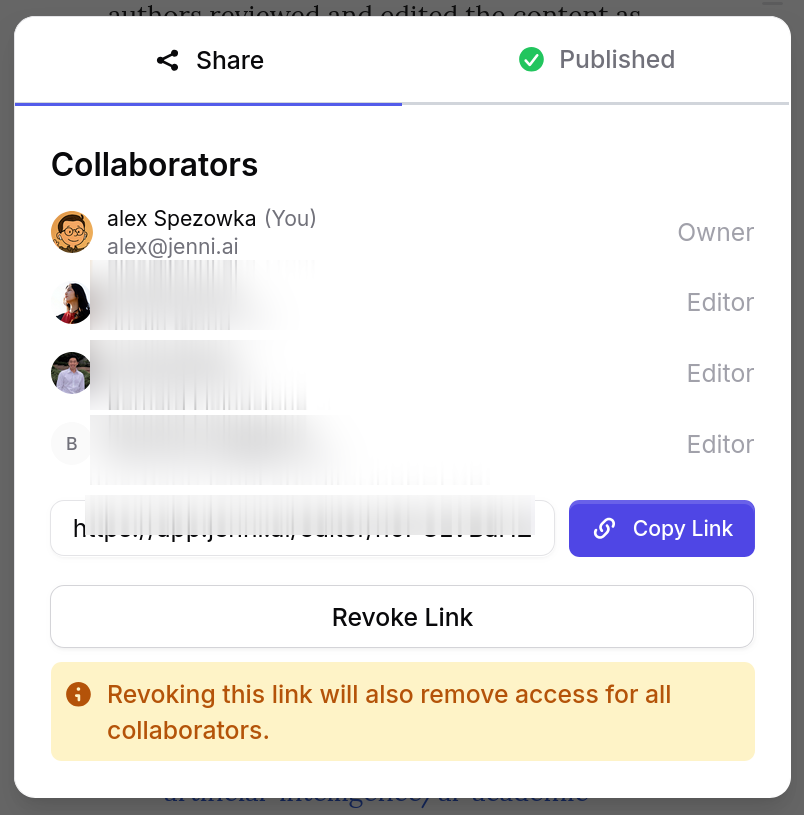
Invite Someone by Email
- Open the document and click Share in the top-right corner
- Enter the person’s email address
- Click Invite
The invitation starts with the Editor role and appears under Invited until it is accepted or canceled. To change its access before acceptance, open the pending invitation’s role menu and choose Commenter or Viewer.
Choose a Permission Role
| Role | What the person can do |
|---|---|
| Editor | Edit the document and use comments |
| Commenter | Read the document and use comments, without editing document content |
| Viewer | Read the document without editing or commenting |
Commenters see a Comment only banner. Viewers see a View only banner. Both can click Request edit access to ask the owner for Editor access.
If someone opens a restricted document without access, they can choose the role they need and click Request Access. The owner receives the request and can approve or reject it.
Share the Document Link
The document owner controls link access under General access:
- Restricted allows only people who already have access
- Anyone with the link opens a role selector for Editor, Commenter, or Viewer
Choose the intended link role, then click Copy Link. Changing the role affects people who receive access through the link. To stop new people from joining through it, set General access back to Restricted.
The link is the document’s address, so access is controlled through General access rather than by generating a replacement link.
Manage Collaborators and Invitations
Open Share to see Collaborators and, for document owners, pending entries under Invited.
- Open a collaborator’s role menu to choose Editor, Commenter, or Viewer
- Choose Remove access to remove a collaborator
- Open a pending invitation’s role menu to change its role
- Choose Resend invitation or Cancel invitation for a pending invitation
If your role is reduced while the document is open, Jenni reloads the page so the editor matches your new access. You may see a notice that your document access changed.
Leave a Shared Document
From the document’s sidebar More options menu, select Leave and confirm Leave this document?. Your access ends until someone shares it with you again.
Live Collaboration
Editors can work in the same document at the same time. Each active collaborator has a labeled cursor, and edits are synchronized across connected sessions. Commenters can participate through document comments without changing the document text.
If your connection drops while editing, Jenni reconnects the collaboration session when the connection returns. Refresh the page if the document does not reconnect normally.
Best Practices
- Use Commenter when someone should give feedback without rewriting the document
- Use Viewer for read-only review
- Set General access to Restricted when open-link access is no longer needed
- Review the collaborator list before sharing sensitive work
- Use comments to keep feedback attached to the relevant passage
Troubleshooting
| Problem | Fix |
|---|---|
| A person cannot open the link | Check whether General access is Restricted. Invite them directly, or select Anyone with the link and choose the intended role. |
| A collaborator cannot edit | Open Share and confirm that their role is Editor. A Commenter or Viewer can use Request edit access. |
| A collaborator cannot comment | Confirm that their role is Editor or Commenter. Viewers cannot add comments or reactions. |
| Collaboration stopped syncing | Check the internet connection and refresh the document to reconnect. |