
Importing
Import Word documents with formatting, images, and citations preserved.
FAQ ↓Jenni can import .docx files and convert them into editable documents with formatting, images, and citations intact. The import process creates a new document in your workspace. The original file is never modified.
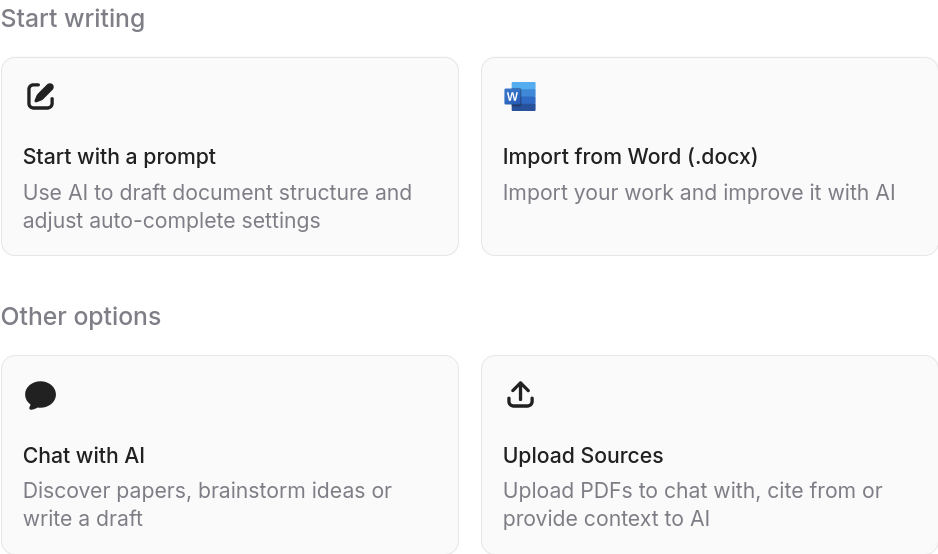
How to Import
- Click the + button in the sidebar.
- Select Import from DOCX Word.
- Choose a
.docxfile from your device. - Jenni creates a new document, extracts the title from the first heading, and opens it in the editor.
Copy and Paste Method
If your draft is not in .docx format (e.g., Google Docs, PDF text, plain text), you can copy and paste it into a new Jenni document:
- Click + New to create a blank document
- Close the document prompt page to reveal the empty editor
- Paste your text (
Ctrl/Cmd + V)
Once your text is in Jenni, all AI features (Autocomplete, Chat, Citations, AI Edit) are available.
What Gets Imported
The importer handles the most common Word formatting and content types. The table below lists what transfers and what does not.
| Element | Imported |
|---|---|
| Bold, italic, underline | Yes |
| Headings (H1–H6) | Yes |
| Lists (up to 8 nesting levels) | Yes |
| Tables | Yes |
| Images | Yes |
| Hyperlinks | Yes |
| Text alignment | Yes |
| Math equations | Yes |
| Page breaks | No |
| Headers and footers | No |
| Specific fonts and sizes | Normalized to editor defaults |
| Tracked changes | No |
Fonts and sizes are normalized to the editor’s default styling. The semantic structure (headings, emphasis, lists) is preserved even when visual styling is simplified.
Citation Matching After Import
Jenni attempts to detect and re-link citations from your imported document:
- The bibliography section at the end of the document is identified and stripped from the body text.
- References are parsed from the bibliography entries.
- In-text citations are matched to the parsed references.
- The Reviews panel opens so you can confirm each matched citation.
If the document was originally exported from Jenni, citations re-link automatically without manual confirmation. For documents from other sources, standard bibliography formats (APA, MLA, Chicago) produce the best matching results.
File Size Limits
| Plan | Maximum file size | Maximum files per batch |
|---|---|---|
| Free | 25 MB | 100 |
| Plus / Pro | 100 MB | 100 |
Troubleshooting
Formatting looks different from the original Word file. Imported documents are normalized to the Jenni editor’s default styles. Semantic formatting (bold, headings, lists) transfers reliably. Visual-only styling such as specific fonts, custom spacing, or color themes is not preserved.
Images are missing. Some embedded image formats may not transfer. Try re-inserting the images manually in the editor. If the file is unusually large, the import may time out before processing all images — try again or reduce image resolution in the original file.
Citations were not detected. Jenni identifies citations best when they follow standard bibliography formats. If your document uses a non-standard format or citations are embedded as plain text without structure, add them manually using the citation tools in the editor.
File is too large to import. Free plan users are limited to 25 MB per file. Upgrade to Plus or Pro for a 100 MB limit. If the file still exceeds the limit, reduce image sizes or split the document into smaller files before importing.