
Importing
Import Word documents with formatting, images, and citations preserved.
FAQ ↓Jenni can import .docx files and convert them into editable documents with formatting, images, and citations intact. The import process creates a new document in your workspace. The original file is never modified.
Jenni saves the converted document content, not a separate copy of the original Word file during import. If an import fails, Jenni does not save a debug copy of the file. For information about how your document data is handled, see the Privacy Policy.
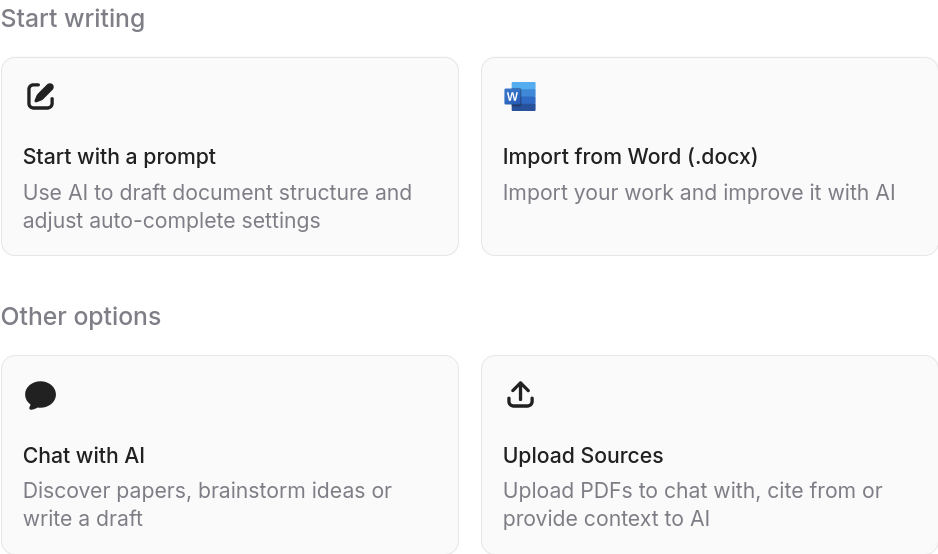
How to Import
From a New Document
- Create a new document.
- Select Import from Word (.docx).
- Choose a
.docxfile from your device. - Review your citation preferences, then select Start Writing.
By Dragging onto the Editor
- Drag a Word document onto the editor writing surface.
- Release it when Drop your Word doc to import appears.
- Jenni creates and opens a new document with the Word file selected for import.
- Review your citation preferences, then select Start Writing.
Jenni imports the content and extracts the document title from the first heading or paragraph. Dropped PDFs continue to upload to your Library, while dropped images are inserted into the document.
Copy and Paste Method
If your draft is not in .docx format (e.g., Google Docs, PDF text, plain text), you can copy and paste it into a new Jenni document:
- Click + New to create a blank document
- Click Skip and start writing to reveal the empty editor
- Paste your text (
Ctrl/Cmd + V)
Once your text is in Jenni, all AI features (Autocomplete, Chat, Citations, AI Edit) are available.
What Gets Imported
The importer handles the most common Word formatting and content types. The table below lists what transfers and what does not.
| Element | Imported |
|---|---|
| Bold, italic, underline | Yes |
| Headings (H1–H6) | Yes |
| Lists (up to 8 nesting levels) | Yes |
| Tables | Yes |
| Images | Yes |
| Figure captions | Yes, when the caption follows its image |
| Hyperlinks | Yes |
| Text alignment | Yes |
| Math equations | Yes, including equations inside table cells |
| Code blocks from Jenni exports | Yes, including language selection |
| Table of contents | Yes, without broken internal links |
| Page breaks | No |
| Headers and footers | No |
| Specific fonts and sizes | Normalized to editor defaults |
| Tracked changes | No |
Fonts and sizes are normalized to the editor’s default styling. The semantic structure (headings, emphasis, lists) is preserved even when visual styling is simplified.
When you re-import a DOCX previously exported from Jenni, multiline code returns as an editable code block rather than separate plain paragraphs. Jenni also restores the selected code language when the export contains one.
Rendered Mermaid diagrams and Chart blocks in Jenni exports are stored as images, so they return as images rather than editable code when you re-import the DOCX.
Jenni converts supported Word equations into editable LaTeX math. Equations inside table cells appear inline so they fit the table layout. Figure captions from Jenni DOCX files remain attached to the preceding image and can be edited in the document.
When you re-import a Jenni-exported DOCX with numbered figure or table captions and cross-references, Jenni restores those links so you can keep editing them in the document.
Citation Matching After Import
Jenni attempts to reconnect in-text citations with the matching references in an imported document. The Reviews panel opens so you can confirm or correct each suggested match.
Ordinary numbers stay as text during citation matching. Numeric citations can be recognized in brackets or superscript; author-and-year citations are matched without removing adjacent spaces.
If the document was originally exported from Jenni, citations re-link automatically without manual confirmation. For documents from other sources, standard bibliography formats (APA, MLA, Chicago) produce the best matching results.
Troubleshooting
Jenni says the file format is unsupported even though the name ends in .docx. Jenni checks that the file is a valid Word document, not only that it has a .docx extension. Open the original file in Word or Google Docs, save or download it again as .docx, and retry. Legacy .doc, RTF, PDF, generic ZIP files, damaged packages, and files renamed to end in .docx cannot be imported through the Word importer.
Jenni says the DOCX is corrupted or incomplete. Open and resave the file in Word or Google Docs, then import the new .docx file. If the file is empty, check that the original contains your document before retrying. If your browser could not read the file, select it again and retry.
Some images did not import. Jenni may import the rest of the document and show a count of images it could not bring over. Check the imported document and add any missing images manually.
Formatting looks different from the original Word file. Imported documents are normalized to the Jenni editor’s default styles. Semantic formatting (bold, headings, lists) transfers reliably. Visual-only styling such as specific fonts, custom spacing, or color themes is not preserved.
Citations were not detected. Jenni identifies citations best when they follow standard bibliography formats. If your document uses a non-standard format or citations are embedded as plain text without structure, add them manually using the citation tools in the editor.
Network error. Check your internet connection and try the import again. Jenni shows a network-specific message when the browser loses access during the import instead of treating it as a document-format problem.