
Introduction
Welcome to Jenni — your AI-powered academic writing assistant.
FAQ ↓Jenni is a writing platform built for academic and professional work. It combines a document editor with AI tools for drafting, editing, citing, and reviewing, all in one place.
What Jenni Does
- AI Autocomplete suggests text as you type, drawing from your document context, headings, and citations
- AI Chat answers questions about your document, finds sources, and helps with structure
- AI Editing rewrites, simplifies, translates, or strengthens selected text with a single command
- Citation Management searches academic databases, formats references in any style, and generates bibliographies automatically
- Library stores your research papers and PDFs, searchable by content and metadata
- Reviews runs AI-powered proofreading and claim confidence checks across your document
- Real-Time Collaboration lets multiple people edit the same document simultaneously
Your First Document
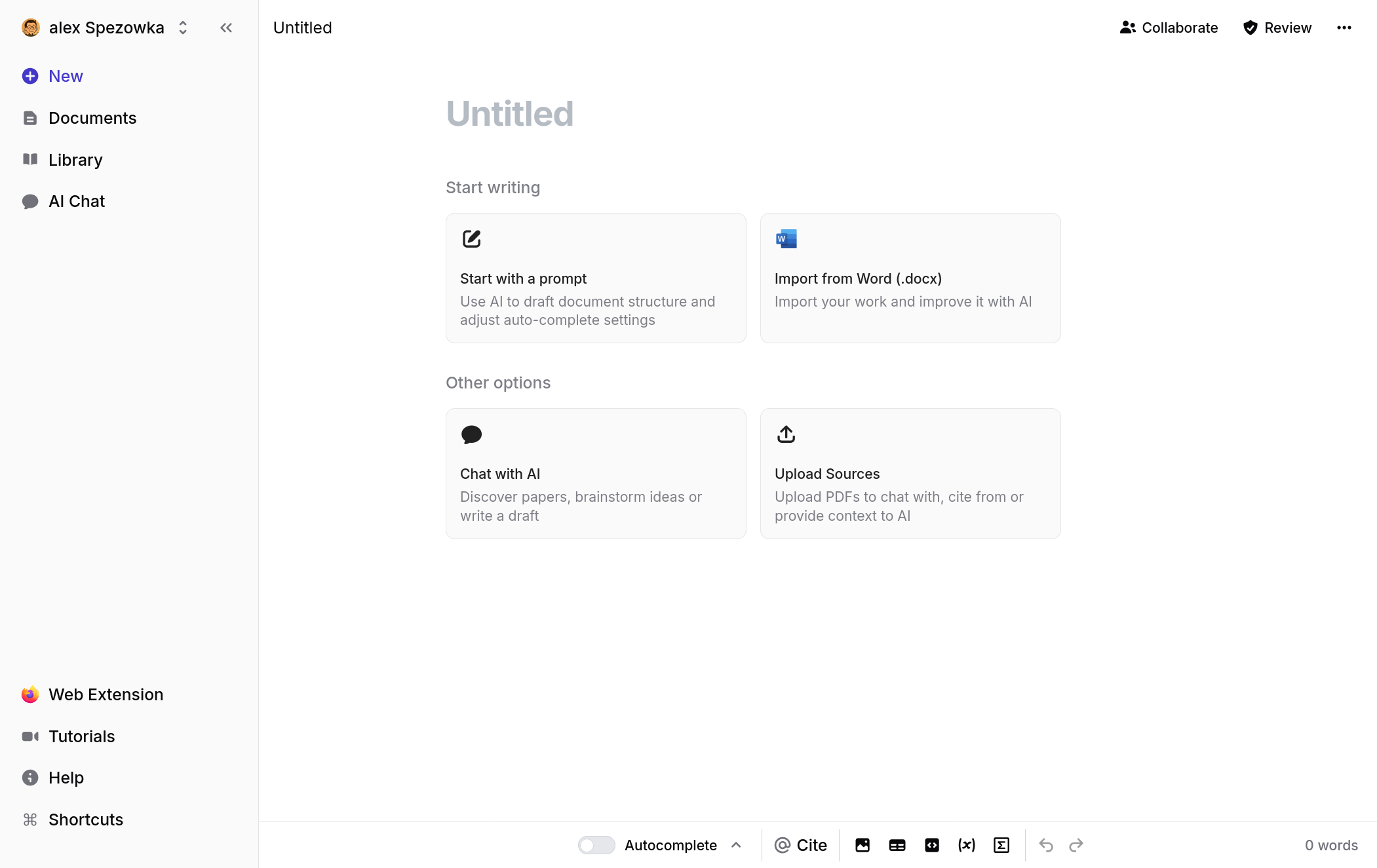
- Click + New in the sidebar
- Enter a title or let the Outline Builder suggest a structure
- Start writing — AI autocomplete activates as you type
- Press the right arrow key to accept a suggestion, or keep typing to ignore it
Setup Progress Guide
After your first login, a progress tracker appears at the bottom of the sidebar. It walks you through five key features:
| Step | What to Do |
|---|---|
| Autocomplete | Accept an AI suggestion (press →) |
| Library | Upload a source |
| Chat | Send a message to the AI |
| Citation | Cite a source using the citation menu |
| AI Commands | Use an AI edit command on selected text |
Pink pulsing dots on the toolbar highlight where each feature lives. Steps complete automatically as you use each feature.
Navigating the Interface
The left sidebar is your main navigation:
- + New — Create a blank document, import from Word, upload a PDF, or import from Zotero/Mendeley/BibTeX/DOI
- Documents — Browse and search all your documents
- Library — Access your research sources and PDFs
- Chat — Open the AI assistant
- Review — Run proofreading and claim confidence checks
The right panel toggles between the AI Chat and Reviews panels.
On mobile, the sidebar opens as a full-screen overlay and the right panels appear as bottom-sheet drawers.
Keyboard Shortcuts
| Shortcut | Action |
|---|---|
Ctrl/Cmd + B | Bold |
Ctrl/Cmd + I | Italic |
Ctrl/Cmd + U | Underline |
Ctrl/Cmd + K | Insert link |
Ctrl/Cmd + Z | Undo |
Ctrl/Cmd + Shift + Z | Redo |
Ctrl/Cmd + F | Find in document |
Ctrl/Cmd + Shift + C | Insert citation |
Ctrl/Cmd + / | Force AI suggestion |
What’s Next
- Document Editor — Learn the full editor capabilities
- AI Autocomplete — Master the autocomplete workflow
- Citation Management — Start citing sources
- Plans & Billing — Compare Free, Plus, and Pro features
Frequently Asked Questions
What is Jenni AI and what can it do?
Jenni is an AI-powered writing platform built for academic and professional work. It combines a document editor with AI autocomplete, citation management, a research library, AI chat, editing commands, and real-time collaboration — all in one place.
How do I create a new document in Jenni?
Click + New in the left sidebar, enter a title or use the Outline Builder for a suggested structure, and start writing. AI autocomplete will activate as you type — press the right arrow key to accept a suggestion.
How does AI autocomplete work in Jenni?
As you type, Jenni suggests text based on your document context, headings, and citations. Press the right arrow key to accept a suggestion, or just keep typing to ignore it. You can also press Ctrl/Cmd + / to force an AI suggestion.
What are the keyboard shortcuts in Jenni?
Key shortcuts include Ctrl/Cmd + B for bold, Ctrl/Cmd + I for italic, Ctrl/Cmd + K for links, Ctrl/Cmd + Shift + C to insert a citation, and Ctrl/Cmd + / to force an AI suggestion. Standard undo (Ctrl/Cmd + Z) and redo (Ctrl/Cmd + Shift + Z) also work.
Can I import documents from Word, Zotero, or Mendeley?
Yes. Click + New in the sidebar and choose to import from Word, upload a PDF, or import from Zotero, Mendeley, BibTeX, or DOI.
Does Jenni work on mobile?
Yes. On mobile, the sidebar opens as a full-screen overlay and the right panels (AI Chat and Reviews) appear as bottom-sheet drawers.
What is the setup progress guide after signing up?
After your first login, a progress tracker appears at the bottom of the sidebar. It walks you through five features — Autocomplete, Library, Chat, Citation, and AI Commands — with pink pulsing dots highlighting where each feature lives. Steps complete automatically as you use them.