
Citation Management
Search, insert, format, and manage citations with automatic bibliography generation.
FAQ ↓Jenni handles citations from insertion through to final bibliography. Search for sources, pick a style, and the formatted references take care of themselves.

Adding Citations
There are several ways to insert citations while writing.
Quick Insert
Type /citation on an empty line or press Ctrl/Cmd + Shift + C anywhere in your document. A search panel appears where you can look up sources by title, author, DOI, URL, or keyword. Select a result and the citation is inserted at your cursor position.
The @ Shortcut
Type @ while writing to open the citation search inline. Search and insert a source without leaving the flow of your sentence.
Highlight and Cite
Select any sentence or paragraph, then click Cite in the selection toolbar. The Citation Search Manager opens, where you can search for relevant sources, toggle between your Library and web results, filter by year or relevance, and click Cite to insert. Jenni adds the source to your reference list automatically.
Cite from Your Library
Click the Library tab in the right sidebar, find the source you want, place your cursor in your draft where the citation should appear, and click Cite on the library entry. The in-text citation and reference list entry are added in one step.
Custom Citations
Open the Citation Search Manager and click Add Custom Citation. Paste a DOI, arXiv ID, or PubMed ID into the search bar. Jenni auto-fills the source metadata and lets you insert it.
Smart Citation Paste
Copy a DOI (e.g., 10.1016/j.biotechadv.2011.08.021) and paste it directly into the editor. Jenni prompts you to choose:
- Paste as Citation – inserts an in-text citation and adds the full reference to your bibliography
- Paste as Link – adds a clickable link to the source
- Paste as Plain Text – inserts the DOI as regular text
Search Filters
The citation search panel supports several filters to narrow results:
- Year range sets a start and end year to limit publication dates
- Minimum citation count filters by how often a paper has been cited
- Source type restricts results to journal articles, conference papers, books, preprints, and other categories
- Open access shows only freely available sources
- Language filters by publication language
Combine filters to find precisely what you need. Filters persist until you clear them or close the panel.
Citation Styles
Default Styles
Five styles are available directly from the dropdown:
| Style | Format |
|---|---|
| APA 7th Edition | (Smith, 2020) |
| MLA 9th Edition | (Smith 45) |
| Chicago 17th (Author-Date) | (Smith 2020) |
| IEEE | [1] |
| Harvard | (Smith, 2020) |
Additional Styles
The dropdown includes a search field that queries the Zotero CSL Style Repository. Thousands of styles are available, including Vancouver, BMJ, PLOS ONE, and Nature. Select any style from the search results to apply it. You do not need to download or manually upload style files.
Changing Styles
Click Citation Style in the toolbar, then select a new style from the dropdown. All in-text citations and the bibliography update automatically to match the new format.
In-Text Citation Types
Jenni supports several in-text citation formats depending on context and style:
- Parenthetical (Smith, 2020)
- Narrative Smith (2020)
- Multiple sources (Smith, 2020; Jones, 2019)
- Grouped collapses multiple works by the same author into a single reference
- With page numbers (Smith, 2020, p. 45) or (Smith, 2020, pp. 45–50)
The available formats depend on the active citation style. Numeric styles like IEEE use bracketed numbers rather than author-date pairs.
Editing Citations
Click any in-text citation to open the citation editor. From there you can:
- Add or change page numbers
- Add a prefix (e.g., “see”) or suffix (e.g., “emphasis added”)
- Switch between parenthetical and narrative forms
- Remove the citation entirely
Changes apply immediately and the bibliography updates to reflect any edits.
Switching Between Narrative and Parenthetical
Jenni supports two common in-text citation formats:
- Narrative – Use when referring to a source by name: Smith (2020) argues that…
- Parenthetical – Use when quoting or paraphrasing: (Smith, 2020)
To switch: click the in-text citation in your document, then click In-text Citation Style in the citation editor and choose your preferred format.
Bibliography
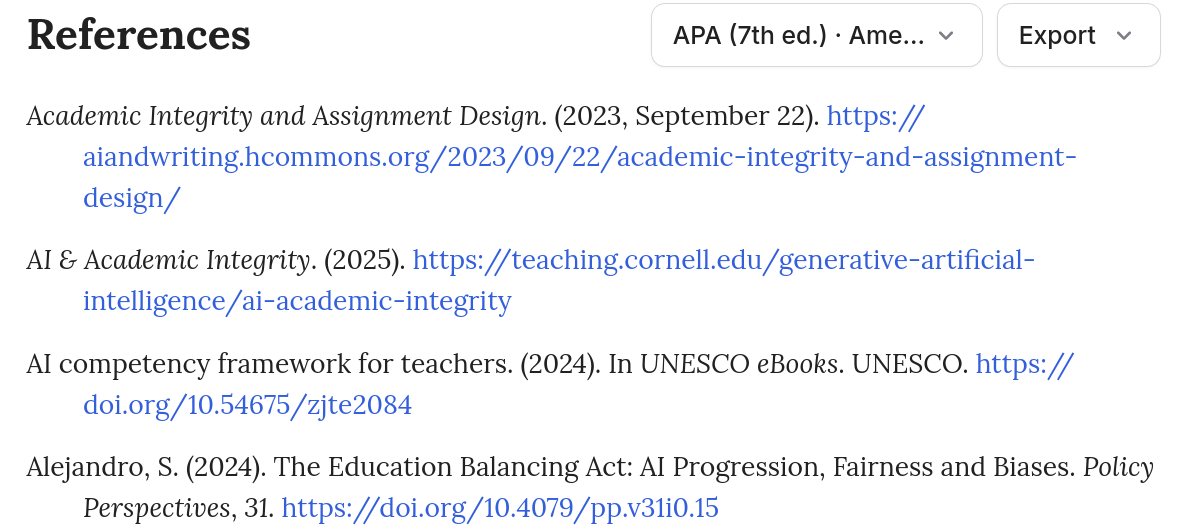
Jenni generates a bibliography at the end of your document automatically. It includes every source you have cited in the text.
The bibliography:
- Updates in real time as you add or remove citations
- Follows all formatting rules of the active citation style (indentation, italics, ordering)
- Sorts entries according to the style specification (alphabetical for APA, numbered for IEEE, and so on)
- Removes references automatically when you delete the corresponding in-text citation
You do not need to create or manage the bibliography manually.
Exporting Your Reference List
From the reference list at the bottom of your document, you can:
- Copy to Clipboard – paste the formatted list into another document
- Copy as BibTeX – copy BibTeX-formatted entries to your clipboard
- Download as BibTeX – save a
.bibfile for use in LaTeX editors, Overleaf, or other reference managers
Reference Manager Integration
Zotero
Click Import from Zotero in the citation panel. Jenni redirects you to authorize access to your Zotero account. Once connected, select a library or specific collection to import. Sources appear in your Jenni library and become available in citation search.
This is a one-way import. Changes made in Zotero after the initial import are not synced automatically. To pull in new sources, go to Settings > Connections and re-import.
Mendeley
The Mendeley flow works the same way. Click Import from Mendeley, authorize, select a collection, and import. Like Zotero, this is a one-way operation. Re-import from Settings > Connections to pick up new additions.
Advanced Features
DOI Resolution
Paste a DOI into the citation search field. Jenni resolves it to the full bibliographic record and inserts a properly formatted citation.
URL Import
Paste a URL to a paper or web page. Jenni extracts available metadata and creates a citation entry.
BibTeX Import and Export
Import citations from a .bib file to add them to your library in bulk. You can also export your bibliography as BibTeX for use in LaTeX editors or other reference managers.
PDF Upload with Auto-Metadata
Upload a PDF directly. Jenni extracts metadata (title, authors, year, DOI) and creates a library entry that you can cite from.
Citation Matching on Import
When you import a Word document that contains references, Jenni parses the reference list and attempts to match each entry to known sources. Matched citations appear as pending items that you can confirm or correct individually. This preserves your existing references without requiring you to re-add them manually.
Keyboard Shortcuts
| Shortcut | Action |
|---|---|
Ctrl/Cmd + Shift + C | Open citation search |
Esc | Close citation panel |
Enter | Select highlighted result |
↑ / ↓ | Navigate search results |
Where Citations Come From
Jenni resolves scholarly metadata using OpenAlex, an open catalog of over 250 million academic works from journals, books, preprints, and conference proceedings. When you search for a citation, paste a DOI or PMID, or ask AI Chat to find a source, Jenni matches the request against this index to produce accurate, formatted references.
When you upload a PDF, Jenni also uses the paper’s contents to support AI Autocomplete, AI Chat analysis, and reference suggestions.
How Jenni Avoids Fabricated Citations
Jenni restricts citations to three inputs: your current document, your uploaded PDFs (full content, not just metadata), and the OpenAlex database. The platform does not fabricate papers, guess dates, or invent sources. Every citation remains verifiable through OpenAlex or your uploaded PDFs. For the most accurate results, upload complete PDFs rather than metadata alone.
Best Practices
- Search by DOI when you have it. This returns the most accurate result.
- Use filters to narrow large result sets instead of scrolling through hundreds of matches.
- Set your citation style early in the writing process to avoid formatting surprises.
- Re-import from Zotero or Mendeley periodically if you are actively adding sources there.
- In the Citation Manager, click the bookmark icon on any web result to save it to your Library for later use.
Troubleshooting
| Problem | Solution |
|---|---|
| Cannot find a specific paper | Try searching by DOI or the exact title. Some preprints and grey literature may not appear in the default search index. |
| Wrong citation style applied | Open the Citation Style dropdown and confirm the correct style is selected. Some styles have similar names (e.g., APA 6th vs. 7th). |
| Bibliography not updating | Refresh the page. If the issue persists, check that the citation was inserted correctly by clicking it in the text. |
| Citations from Word import not matching | Open pending citations and manually confirm or correct each match. Jenni relies on metadata parsing, which can miss entries with unusual formatting. |
Frequently Asked Questions
How do I add citations in Jenni?
/citation on an empty line, press Ctrl/Cmd + Shift + C, or type @ inline while writing. You can also highlight text and click Cite in the selection toolbar.How do I change my citation style in Jenni?
Can I import citations from Zotero or Mendeley?
How do I export my bibliography as BibTeX?
.bib file for use in LaTeX editors or other reference managers.