
Library
A personal research database for organizing, searching, and managing papers and sources.
FAQ ↓The Library is a centralized place for all your research sources. Upload PDFs, import from reference managers, and organize everything into collections. Any source in your library is available for citation search when you write.
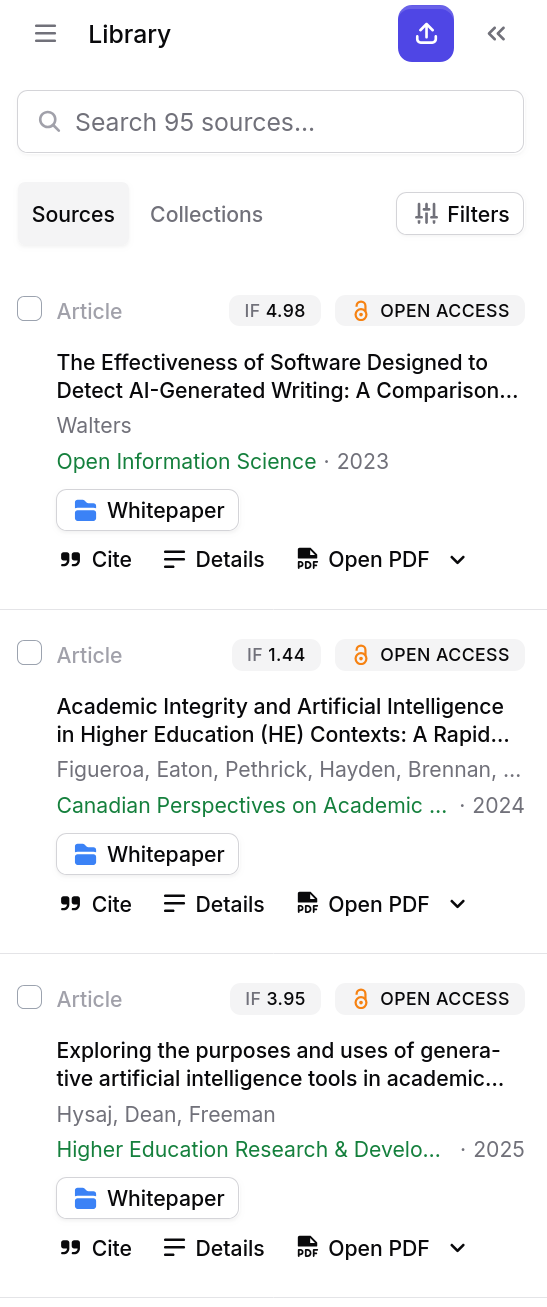
Accessing the Library
Click Library in the sidebar. The main view displays your sources in a list with a search bar at the top and an Add PDF button. Each entry shows the title, authors, year, and source type.
Adding Sources
Upload a PDF
Click Add PDF and select a file, or drag and drop a PDF directly into the library panel. Jenni extracts metadata automatically (title, authors, year, DOI, abstract) and indexes the full text for search.
Import from Zotero
Go to Settings > Connections and click Connect next to Zotero, or click Upload in the Library and select Import from Zotero. Authorize access, then select which collections you want to import. Sources are pulled into your Jenni library with their metadata intact. If your Zotero sources have PDFs attached, those files are imported automatically.
This is a one-way import. Tags and notes from Zotero are not imported. Only papers saved in a Zotero collection will appear – items not added to any collection are not available for import. To pick up sources added after the initial sync, return to Settings > Connections and re-import.
Import from Mendeley
The process is identical to Zotero. Click Upload in the Library and select Import from Mendeley, or connect via Settings > Connections. Authorize, select collections, and import. PDFs attached in Mendeley are imported automatically. Annotations and highlights from Mendeley are not imported.
Only papers saved in a Mendeley collection will appear for import. Re-import as needed for new additions.
Import from BibTeX or RIS
Upload a .bib (BibTeX) or .ris (RIS) file to import references in bulk. This is available from the + New menu. References are parsed, validated, and added to your library with all available metadata.
Import by DOI, PMID, or ISBN
Paste a DOI, PMID URL, or ISBN into the citation search or import dialog. Jenni resolves the identifier automatically via CrossRef (DOI), PubMed (PMID), or ISBNdb (ISBN), fetching complete metadata without manual entry.
When you add a paper via DOI or PMID, Jenni attempts to fetch the full PDF. If successful, the text is available for citation, chat, and synthesis. If Jenni cannot fetch the PDF, you will see a “Missing PDF Attachment” warning. To resolve it, go to your Library, click View next to the warning, and click Fetch to retry or Upload PDF to attach the paper manually. Sources without an attached PDF can still be cited, but they are not available for AI Chat or autocomplete until a PDF is attached.
From Citation Search
When you search for citations while writing, any result you select is saved to your library automatically. You can also save external results without inserting them, which is useful for building a reading list before you begin drafting.
Organizing with Collections
Collections work like folders for your sources. You can:
- Create a new collection from the library sidebar
- Name and rename collections at any time
- Nest collections inside other collections for hierarchical organization
- Move sources between collections by dragging or using the context menu
- Delete a collection without removing the sources it contains (they remain in the main library)
A single source can belong to multiple collections.
Searching the Library
The search bar at the top of the library supports quick lookup across titles, authors, abstracts, and full PDF text. Jenni uses a hybrid approach that combines semantic search with keyword matching, so both exact phrases and conceptual queries return relevant results.
Filters
Narrow your library view using the filter controls:
| Filter | Options |
|---|---|
| PDF status | Any, Has PDF, No PDF |
| Publication year | All, Last 5 years, Custom range |
| Impact factor | All, > 0.25, > 3, > 10 |
| Open access | Any, Yes, No |
| Work type | 35+ types including journal article, conference paper, book chapter, preprint, thesis, dataset, and others |
Filters combine with search. Apply a year range and a work type filter, then search by keyword to drill down to exactly what you need.
Working with PDFs
Click any source that has an attached PDF to open it in the built-in reader, which uses MuPDF for rendering. From the reader you can:
- Search within the PDF using
Ctrl/Cmd + F - Edit metadata to correct titles, authors, or other fields that were extracted incorrectly
- Delete the source from your library entirely
See the PDF Reader page for details on the reading and search experience.
Editing Metadata
If a source’s title, author, or publication data is incorrect or incomplete:
- Click the source in your Library
- Click Details, then the pencil icon to edit
- Update any fields and click Save
Jenni pulls citation formatting from this metadata, so clean records produce cleaner citations and reference lists.
Exporting Sources
Select one or more sources in the library and export them in either of two formats:
- BibTeX (
.bib), compatible with LaTeX editors and most reference managers - RIS (
.ris), compatible with EndNote, RefWorks, and other tools
Exported files include all available metadata for the selected sources.
Upload Limits
| Free | Plus | Pro | |
|---|---|---|---|
| PDF uploads | 10 | Unlimited | Unlimited |
| Max file size | 25 MB | 100 MB | 100 MB |
| Max pages per PDF | 150 | 500 | 1,000 |
Files that exceed the size or page limit for your plan are rejected at upload. Upgrade your plan in Settings > Billing to increase limits. See Plans and Billing for details.
Troubleshooting
| Problem | Solution |
|---|---|
| Sources not appearing after import | Refresh the library view. Large imports from Zotero or Mendeley may take a few minutes to process. |
| PDF not uploading | Check that the file is within the size and page limits for your plan. Corrupted or password-protected PDFs cannot be processed. |
| Zotero or Mendeley connection failing | Revoke the Jenni connection in your Zotero/Mendeley account settings, then reconnect from Settings > Connections. |
| Metadata incorrect after upload | Click the source, then edit the metadata fields manually. Extraction accuracy depends on the PDF structure. |
Frequently Asked Questions
How do I upload a PDF to my Jenni library?
How do I import my Zotero library into Jenni?
What is the PDF upload limit on the free plan?
How do I organize sources into folders or collections?
Can I search the full text of my uploaded PDFs?
How do I export my library references?
.bib) or RIS (.ris). Exported files include all available metadata for the selected sources.Can I import references from a BibTeX file?
.bib or .ris file from the + New menu to import references in bulk. Jenni parses and validates the entries and adds them to your library with all available metadata.