
AI Editing
Select text, choose a command, and review AI-suggested changes with a side-by-side diff.
FAQ ↓AI Editing lets you transform selected text using predefined or custom commands. The editor shows a diff of the proposed changes so you can review exactly what will change before accepting.
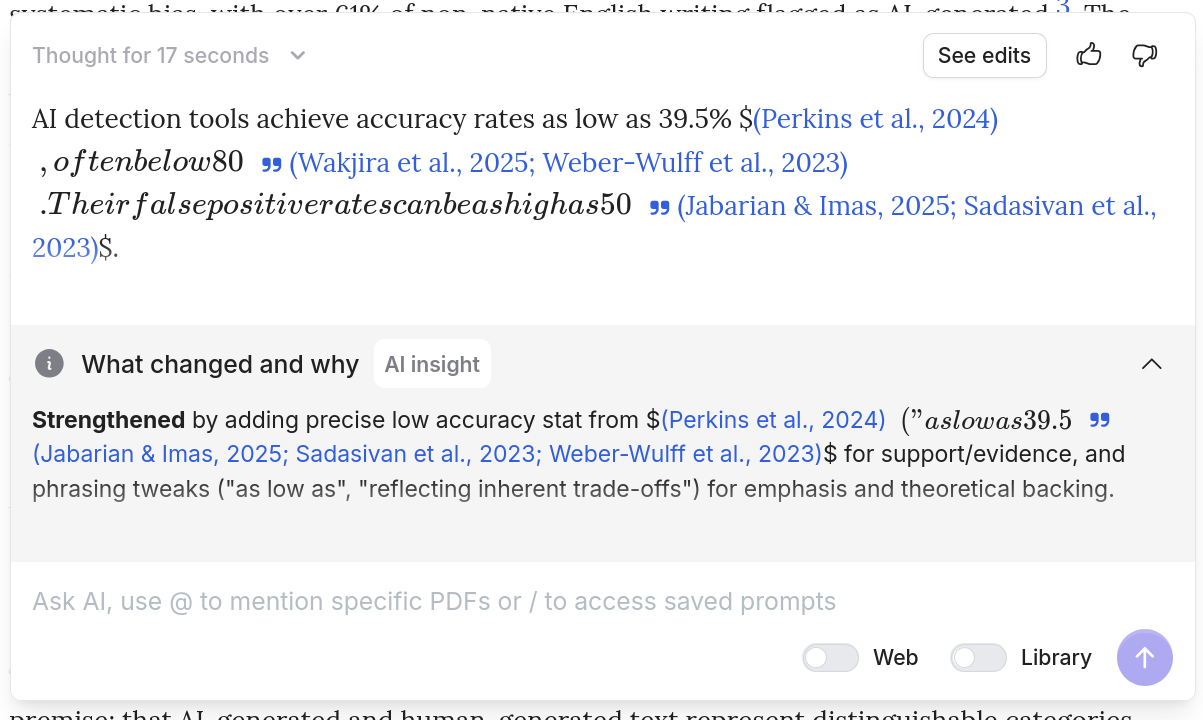
How to Use
- Select the text you want to edit
- A command menu appears above the selection
- Choose a predefined command or type a custom instruction
- Review the diff. Green highlights show added text, red highlights show removed text.
- Accept or discard the changes
A brief summary above the diff explains what the AI changed and why.
Predefined Commands
Strengthen Writing
| Command | What It Does |
|---|---|
| Fluency | Smooths awkward phrasing and improves readability |
| Paraphrase, Academic | Rewrites in formal academic tone |
| Paraphrase, Casual | Rewrites in conversational tone |
| Paraphrase, Persuasive | Rewrites to strengthen rhetorical impact |
| Paraphrase, Bold | Rewrites with more assertive, direct language |
| Paraphrase, Friendly | Rewrites in warm, approachable tone |
| Simplify | Reduces complexity with shorter sentences and simpler vocabulary |
| Make longer | Expands the selected text with additional detail and supporting points |
| Strengthen argument | Adds logical connectives and tightens reasoning |
| Counter-argument | Generates an opposing perspective to the selected claim |
Generate from Selection
| Command | What It Does |
|---|---|
| Summarize | Produces a condensed version of the selected text |
| Write opposing argument | Drafts a counterpoint to the selected claim |
| Write with more depth | Expands the selection with deeper analysis and supporting detail |
Transform
| Command | What It Does |
|---|---|
| Change tense, Past | Converts verbs to past tense |
| Change tense, Present | Converts verbs to present tense |
| Change tense, Future | Converts verbs to future tense |
| Convert to bullet list | Restructures prose into a bulleted list |
| Convert to numbered list | Restructures prose into an ordered list |
| Convert to prose | Expands a list or table into paragraph form |
| Convert to table | Restructures content into a table |
| Translate, English | Translates selected text to English |
| Translate, Spanish | Translates selected text to Spanish |
| Translate, German | Translates selected text to German |
| Translate, French | Translates selected text to French |
| Translate, Chinese | Translates selected text to Chinese |
| Translate, Japanese | Translates selected text to Japanese |
Academic Style
| Command | What It Does |
|---|---|
| Increase formality | Elevates register by removing contractions and colloquial phrasing |
| Technical precision | Tightens language for scientific or technical writing |
| Increase claim confidence | Strengthens hedged statements (“may suggest” becomes “demonstrates”) |
| Hedge claim confidence | Softens strong assertions (“proves” becomes “suggests”) |
Custom Instructions
Below the predefined commands, a text field accepts any free-form instruction. Type what you want (“make this more concise,” “rewrite for a general audience,” “add transition sentences”) and the AI applies it to the selected text.
Custom instructions have no format restrictions. The AI interprets your intent and generates a diff accordingly.
Reviewing and Applying Edits
Reviewing Changes
The diff view uses color coding:
- Green text — added by the AI
- Red text — removed from the original
A short summary appears above the diff explaining the nature of the changes. Read it for a quick sense of what shifted before examining the full diff.
Post-Edit Actions
| Action | What It Does |
|---|---|
| Replace | Swaps the selected text with the AI version |
| Insert below | Keeps the original and adds the AI version underneath |
| Retry | Generates a new version using the same command |
| Discard | Cancels the edit and restores the original selection |
You can retry multiple times to get variations. Each retry produces a fresh result.
Tips
- Select complete sentences or paragraphs. Partial selections can produce awkward edits at the boundaries. The AI works best with grammatically complete units.
- Use Paraphrase, Academic for research papers. It adjusts tone, word choice, and sentence structure to match formal academic conventions.
- Use Simplify for accessibility. When writing for a general audience, Simplify reduces jargon and shortens sentences without losing meaning.
- Retry for variations. The first result is not always the best. Retry two or three times and compare before committing.
- Combine commands sequentially. Run Simplify first, then Increase formality. Layering commands gives you finer control than a single pass.
- For document-wide feedback, use Reviews instead. AI Editing works on selected text; Reviews scans your entire document for grammar, style, and claim confidence issues.