
Document Editor
A rich text editor with formatting, tables, code blocks, and real-time collaboration.
FAQ ↓The document editor is where all writing happens in Jenni. It supports rich text formatting, Markdown shortcuts, embedded media, and up to ten concurrent collaborators working in the same document.

Creating and Opening Documents
Click + New in the sidebar to create a blank document. You can also import from Word, upload a PDF, or pull in sources from Zotero, Mendeley, BibTeX, or DOI.
Existing documents appear in the Documents panel of the sidebar. Click any title to open it in the editor. Documents save automatically as you type.
Basic Formatting
The toolbar provides access to all standard formatting options:
- Bold (
Ctrl/Cmd + B) - Italic (
Ctrl/Cmd + I) - Underline (
Ctrl/Cmd + U) - Strikethrough (
Ctrl/Cmd + Shift + X) - Headings (H1 through H4)
- Ordered lists and unordered lists
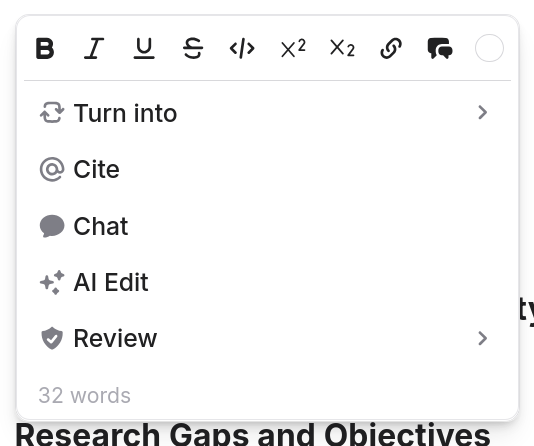
Select text to reveal the formatting toolbar, or use keyboard shortcuts directly. The selection toolbar also includes:
- Highlight (3 colors)
- Inline code
- Link
- Cite – open the citation search for the selected text
- Chat – send the selection to AI Chat as a temporary source
- AI Edit – open the AI editing command menu
- Review – run a review on the selected text
Markdown Shortcuts
The editor recognizes Markdown syntax as you type and converts it automatically:
| Syntax | Result |
|---|---|
# | Heading 1 |
## | Heading 2 |
### | Heading 3 |
- or * | Unordered list |
1. | Numbered list |
``` | Code block |
Type the syntax at the start of a new line followed by a space. The editor converts it to the corresponding block type immediately.
Content Blocks
Tables
Insert a table from the toolbar or by typing /table in the slash command menu.
Once inserted, you can:
- Add or delete rows and columns using the controls that appear on hover
- Merge cells by selecting multiple cells and choosing Merge from the context menu
- Resize columns by dragging the column borders
Tables support text formatting within cells, including bold, italic, and inline code.
Code Blocks
Insert a code block from the toolbar, the slash command menu, or by typing three backticks (```) on a new line.
The editor provides syntax highlighting for 15 languages:
| CSS | JavaScript | TypeScript |
| HTML | Bash | Dockerfile |
| Markdown | Rust | Python |
| C | Java | Plaintext |
| Go | JSON | PHP |
Select the language from the dropdown in the top-right corner of the code block. The default is Plaintext.
Images
There are four ways to add an image to a document:
- Drag and drop a file directly into the editor
- Paste from clipboard (
Ctrl/Cmd + V) - Toolbar — click the image icon in the toolbar
- Slash command — type
/imageon an empty line
Supported formats are PNG, JPEG, and WebP. The maximum file size is 15 MB per image.
Once an image is inserted, hover over it to access controls for alignment, captioning, AI analysis, and deletion. See Images for the full details on image controls and workflows.
Links
To insert a link, select the text you want to link and click the link icon in the toolbar, or press Ctrl/Cmd + K. Paste the URL into the field and press Enter.
You can also paste a URL directly onto selected text. The editor converts it to a link automatically.
Figures and Horizontal Rules
Insert a figure or horizontal rule from the slash command menu (/figure or /horizontal-rule). Horizontal rules appear as a thin line spanning the content width, useful for separating sections visually.
Bottom Toolbar
When no text is selected, a resting toolbar sits at the bottom of the editor. It provides quick access to:
- Add blocks (same options as the slash command menu)
- Undo and redo
- Live document word count
Editor Tools
Slash Command Menu
Type / at the start of an empty line to open the command menu. It provides quick access to:
- Headings (H1, H2, H3, H4)
- Bullet list, numbered list
- Table
- Code block
- Image
- Math equation (inline and block)
- Figure
- Horizontal rule
Start typing after / to filter the list. Press Enter or click to insert.
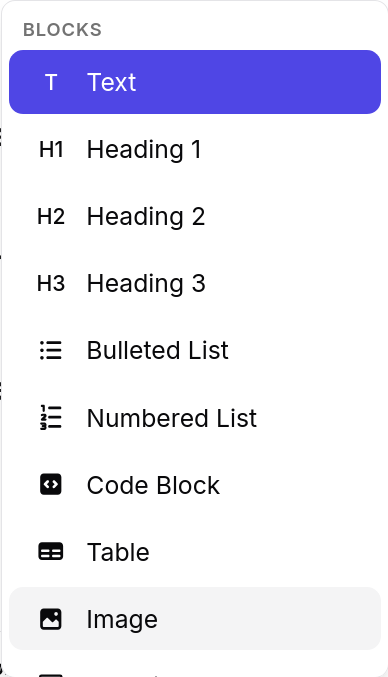
Table of Contents
The editor generates a Table of Contents automatically from your headings. It appears in the right-side marginalia and updates in real time as you add, remove, or rename headings. Click any entry to scroll to that section.
Keyboard Shortcuts
Formatting
| Shortcut | Action |
|---|---|
Ctrl/Cmd + B | Bold |
Ctrl/Cmd + I | Italic |
Ctrl/Cmd + U | Underline |
Ctrl/Cmd + Shift + X | Strikethrough |
Ctrl/Cmd + K | Insert link |
Navigation and Document Actions
| Shortcut | Action |
|---|---|
Ctrl/Cmd + Z | Undo |
Ctrl/Cmd + Shift + Z | Redo |
Ctrl/Cmd + F | Find in document |
Ctrl/Cmd + / | Force AI suggestion |
Ctrl/Cmd + Shift + C | Insert citation |
/ | Open slash command menu |
Performance and Known Limitations
Jenni saves automatically as you type. If your connection drops briefly, edits are queued and sync when connectivity returns. A connection indicator in the editor shows your current status. Offline editing handles brief interruptions, but for longer disconnections, reconnect periodically to make sure changes are saved.
The editor works best on the latest versions of Chrome, Firefox, Safari, and Edge. Update your browser if anything behaves unexpectedly, and try disabling extensions (especially ad blockers) that might interfere.
Documents with more than 500,000 characters may experience slower reference parsing. Consider splitting very long documents into separate chapters. Individual images cannot exceed 15 MB (PNG, JPEG, WebP only), and documents with many large images may load more slowly.
A maximum of 10 people can edit the same document concurrently.
Troubleshooting
Editor not loading. Refresh the page. Check your internet connection. Clear your browser cache. Try a different browser. If none of that works, browser extensions (ad blockers, privacy tools) may be interfering. Try an incognito/private window to rule them out.
Content not saving or changes lost. Jenni auto-saves via real-time sync. If the connection indicator shows “offline,” your changes are queued and will sync when connectivity returns. If content appears lost, check Version History to restore a previous version.
Editor is slow or laggy. Documents over 500,000 characters may slow down. Large numbers of images (especially near 15 MB each) increase load time. Try splitting very long documents. Close unused browser tabs to free memory.
AI features not responding. Check your usage limits and internet connection. Reload the page. Contact support if the problem continues.