
Math Equations
Insert and render LaTeX math equations inline or as full-width blocks.
FAQ ↓Jenni renders LaTeX math using KaTeX, supporting both inline equations that sit within a line of text and block equations that occupy their own centered line.
Inline Equations
Inline equations appear within the flow of a sentence. There are two ways to insert one:
- Click the summation icon (the one labeled with the sigma symbol) in the toolbar and select Inline equation
- Type
$$followed by your LaTeX, then close with$$(for example,$$E = mc^2$$)
The editor renders the equation immediately after you close the delimiters.
Block Equations
Block equations render as centered, full-width expressions on their own line. To insert one:
- Click the math block icon in the toolbar
- Type
$$$followed by your LaTeX, then close with$$$
Block equations are suited for standalone formulas, derivations, and any expression that benefits from visual prominence.
Editing Equations
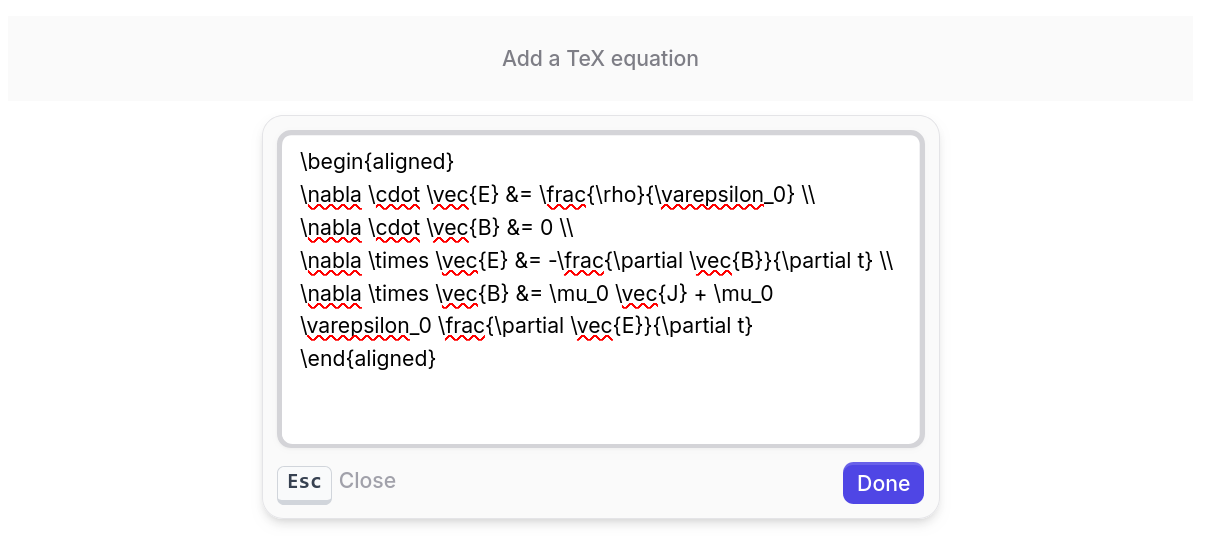
Click any rendered equation to open the popover editor. The popover contains:
- A LaTeX input field where you type or modify the formula
- A live preview that renders as you type
- Preset buttons for common expressions (the quadratic formula, Maxwell’s equations, and piecewise functions) which insert their LaTeX into the input field
Popover Keyboard Shortcuts
| Shortcut | Action |
|---|---|
Escape | Cancel editing and close the popover |
Ctrl/Cmd + Enter | Save the equation and close the popover |
| Done button | Save the equation and close the popover |
LaTeX Syntax Quick Reference
| Expression | LaTeX | Renders As |
|---|---|---|
| Fraction | \frac{a}{b} | a/b |
| Square root | \sqrt{x} | square root of x |
| Superscript | x^{2} | x squared |
| Subscript | x_{i} | x sub i |
| Summation | \sum_{i=1}^{n} x_i | summation from i=1 to n |
| Integral | \int_{a}^{b} f(x) dx | definite integral from a to b |
| Greek letters | \alpha, \beta, \gamma, \theta, \pi | respective Greek symbols |
| Matrix | \begin{pmatrix} a & b \\ c & d \end{pmatrix} | 2x2 matrix |
The editor supports the full KaTeX function library. For a complete list of supported functions, symbols, and environments, see the KaTeX documentation.
Copying Equations
Hover over any rendered equation to reveal a copy button. Clicking it copies the LaTeX source to your clipboard, ready to paste elsewhere.
Export Behavior
- LaTeX export — Equations are preserved as raw LaTeX in the exported
.texfile, wrapped in appropriate$...$or\[...\]delimiters - Word import — Equations imported from
.docxfiles are converted to LaTeX and rendered in the editor
Other export formats (PDF, DOCX) render equations as formatted output.
Troubleshooting
Equation shows raw LaTeX text instead of rendering
Confirm that the delimiters are correct: $$...$$ for inline, $$$...$$$ for block. A missing closing delimiter prevents rendering. Also check for unsupported LaTeX commands. KaTeX covers most standard math but does not support every package.
Equation does not convert when typing delimiters
Make sure there are no spaces between the dollar signs and the formula. $$ E=mc^2 $$ with leading/trailing spaces inside the delimiters may not trigger the parser. Write $$E=mc^2$$ instead.
Equation renders incorrectly Check your LaTeX syntax. Common issues include mismatched braces, missing backslashes on commands, and incorrect environment names. Use the popover editor’s live preview to debug; it highlights syntax errors as you type.