
Version History
Browse, preview, and restore any previous version of your document.
FAQ ↓Every edit to a Jenni document is tracked automatically. Version history lets you browse past states of your document, preview them, and restore any version with a single click.
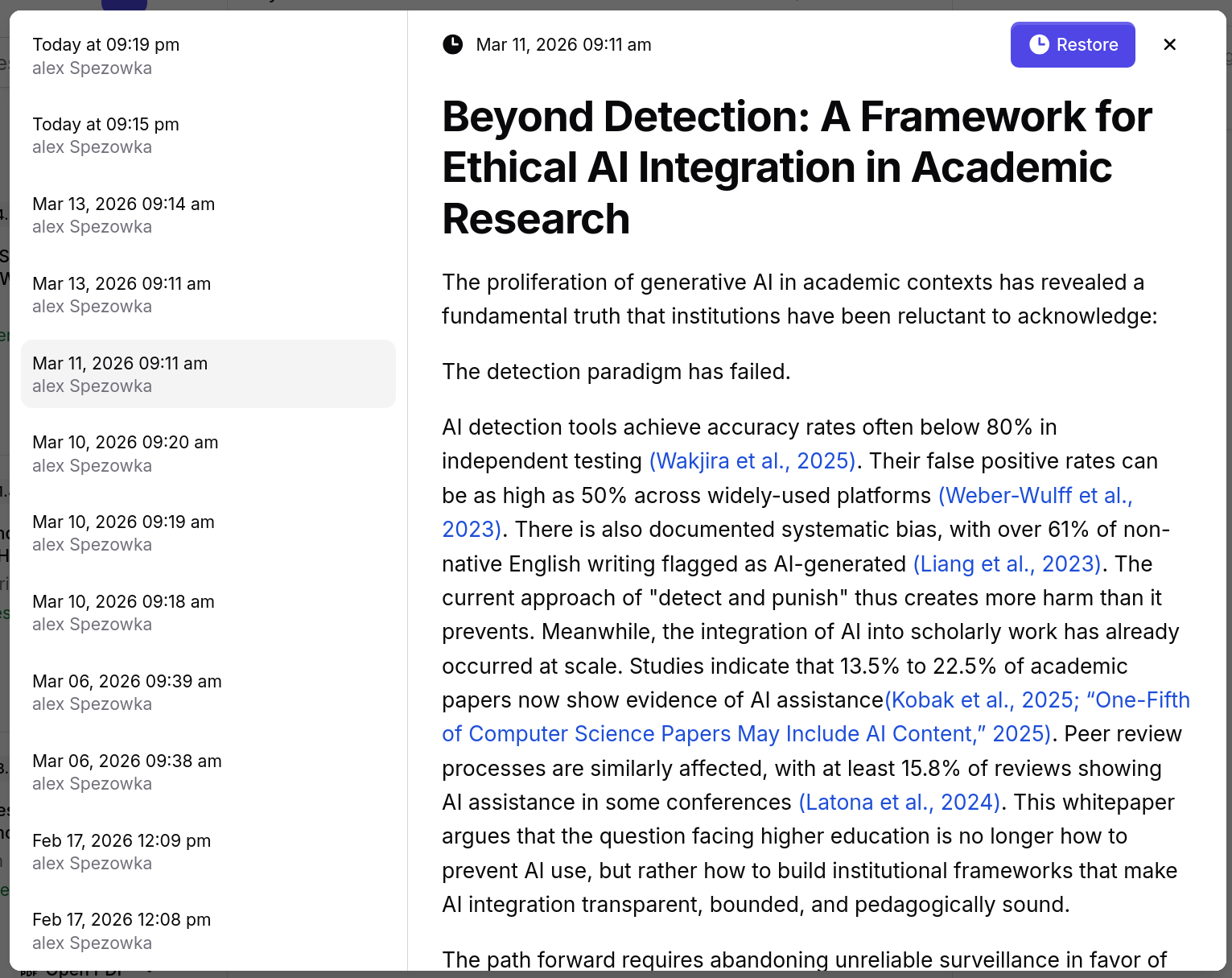
Opening Version History
Open version history through either of these paths:
- Click the clock icon in the editor toolbar
- Open the three-dot menu in the top-right corner and select Version history
A modal appears showing all saved versions of the document.
Layout
On desktop, the modal displays a list of versions in a sidebar on the left and a read-only preview panel on the right. Versions are sorted with the most recent at the top. Each entry shows the date, time, and the name of the collaborator who made the change.
On mobile, versions appear in a dropdown selector. Select a version from the dropdown to load its preview below.
How Versions Are Created
Versions are created automatically as you and your collaborators edit. There is no manual save step. Jenni groups nearby edits into discrete version entries so the list stays navigable rather than recording every keystroke.
Availability
Version history is available on all subscription plans, including Free.
Working with Versions
Previewing a Version
Click any version in the list to load a read-only rendering of the document as it existed at that point. The preview includes all text, formatting, and comments that were present in that version.
Use previews to compare how the document has changed over time before deciding whether to restore.
Restoring a Version
- Select the version you want to restore
- Click Restore
- The document reverts to the selected version’s content
Restoring does not erase history. A new version entry is created that records the restore action. If you change your mind, you can revert again by restoring the version that existed just before the restore.
The Restore button is disabled when the current (most recent) version is selected, since there is nothing to revert to.
Collaboration and Version History
In shared documents, version entries show which collaborator made each set of changes. This makes it possible to trace who edited what and when, which is useful for accountability in group projects.
Troubleshooting
| Problem | Cause | Fix |
|---|---|---|
| No versions appear | The document is new and has no edits beyond the initial state | Make some edits and reopen version history |
| Restore button is disabled | The currently selected version is already the latest | Select an older version to enable the Restore button |
| Version list loads slowly | Documents with very long edit histories may take a moment to render | The list uses virtualized rendering to handle large histories; wait a few seconds for it to load |